
Installation Steps in the SAP® System
This article collects everything that is done inside the SAP system with SAP GUI: importing the Teamscale Connector transport, creating the technical user and its role, and the optional setup for Secure Network Communications, SAP Code Inspector, coverage collection and the ABAP Test Cockpit.
Perform these steps after the prerequisites and before configuring the connection in Teamscale.
Installation of the SAP Connector
The required configuration steps on the SAP system are independent of clients on the SAP system (in German »mandantenunabhängig«). Therefore, it is not required to transport our add-on to specific clients.
An archive file containing the latest release of the Teamscale Connector for SAP NetWeaver® AS ABAP® can be downloaded via https://www.cqse.eu/get-abap. Download either the .zip or .tar.gz source code file.
For transport, place the K* and R* files from the archive in the cofiles and data directories of the transport directory of your host machine (typically /usr/sap/trans on Unix/Linux or C:\usr\sap\trans on Windows) and import the transport (transaction STMS ). Enable special conditions Overwrite Originals and Ignore Invalid Component Version:

After importing the transport, the documentation service (see screenshot below) needs to be activated in transaction SICF. Ensure the following settings are in order:
- Internet Communication Manager (ICM) is running. This can be checked in transaction
SMICM. - A port is assigned for HTTPS protocol. In transaction
SMICM, click Goto (menu) > Services. A table overview of the protocol-port assignments is presented. Note the assigned port, so that you can enter it as the Check descriptions: ICF base URL in Teamscale later. Teamscale uses port 443 if you leave that option empty. If you prefer port 443, and it is not assigned yet, it can be set in transactionRZ10. Select the default profile, select Edit profile > Extended Maintenance and set the port assignment in a newicm/server_port_xparameter.xis at least 0. - SSL is enabled in transaction
STRUST. Under the node SSL server Standard, check that a system-wide SSL PSE exists. If not, create one by right-clicking on the node.
If all settings are correct, navigate to transaction SICF. Under the default_host node, expand the Teamscale node to its last child documentation. Right-click on it and select Activate Service.

Basically, no further configuration in the SAP system is required. Basically, no further configuration in the SAP system is required. One exception is the use of Secure Network Communications (SNC).
Removal of the SAP Connector
To remove the Teamscale Connector for SAP NetWeaver® AS ABAP® from your system, a deletion transport is provided upon request. Please contact us, attaching a Teamscale support request and mention the System ID the connector should be removed from. We will then provide the deletion transport for the correct version.
User and Role for RFC Access
Teamscale logs on to the SAP system with a technical user, as described in Prerequisites. This section describes how to create that user and its role.
Role and Required Access Rights
The SAP user for Teamscale must have an appropriate role assigned. The required authorizations are listed here:
Authorizations for SAP Teamscale User
| Authorization Object | Field | Value |
|---|---|---|
S_RFC | RFC_TYPE | FUGR (Function Group) |
RFC_NAME | RFC_METADATA, /CQSE/TEAMSCALE_CONNCT_RFC, /CQSE/TEAMSCALE_TIA_RFC | |
S_RFC | RFC_TYPE | FUNC (Function Module) |
RFC_NAME | DDIF_FIELDINFO_GET, RFCPING, RFC_GET_FUNCTION_INTERFACE | |
S_BTCH_JOB | JOBACTION | RELE (Release Jobs) |
JOBGROUP | * | |
S_COV_ADM | ACTVT | 02 (Change) |
S_DEVELOP | DEVCLASS | * |
OBJTYPE | * | |
OBJNAME | * | |
P_GROUP | * | |
ACTVT | 03 (Display) |
The authorizations are required for basic RFC access, read access to development objects (source code), scheduling and releasing (own) batch jobs for background processing, and for enabling test coverage analysis.
The role can be defined manually, e.g. using transaction PFCG, or the predefined role /CQSE/RFC_TEAMSCALE can be used.
RFC User for Teamscale
The SAP user for Teamscale can be created in the usual way users are created in the SAP system, e.g. using transaction SU01.
WARNING
Use a system user, not a dialog user. The role described before (e.g., /CQSE/RFC_TEAMSCALE) must be assigned to this user.
Using a dialog user might result in connection timeouts as dialog connections are by default terminated after 10 minutes without user interaction. The initial extraction of the source as well as the retrieval of SAP Code Inspector results might take longer
Time Zone Settings
It is highly recommended that the user time zone of the SAP user for Teamscale is the same as the SAP system time zone. If the user time zone differs from the system time zone, the continuous polling for code changes might not work correctly, and code changes might not be visible or only with a longer delay. The time zone setting of the user can be checked / edited in transaction SU01 .
Additionally, it is highly recommended that the system time zone in SAP NetWeaver is the same as the time zone of the operating system.
SNC Configuration of the SAP System (optional)
If the RFC communication between Teamscale and SAP NetWeaver should be secured (encrypted), Teamscale can connect to the SAP system via Secure Network Communications (SNC). This section covers the SAP side; the Teamscale server side and the connection options are described separately.
To enable SNC, the SAP system must be configured accordingly. In the following a rough outline of the configuration is stated. As the configuration steps vary depending on the SAP version and on the individual configuration needs for a customer SAP system, please refer to this article on help.sap.com for detailed instructions on how to set up SNC. Furthermore, there is a very helpful SAP Community blog post.
The recommended SNC configuration steps for an SAP NetWeaver system are as follows:
Ensure that the following instance parameters (transaction
RZ10) are set:snc/enable = 1 snc/identity/as = snc_namewhere snc_name is the SNC name of the SAP system, something like
p:CN=SID, O=ACompany, C=EN.The SAP Cryptographic Library must be installed, see SAP Note 1848999.
With the command line tool
sapgenpseof SAP Cryptographic Library, a Personal Security Environment (PSE, stored in a file) for Teamscale must be created. This can be done by executingsapgenpseon the application server (or any other sever where the SAP Cryptographic Library is available). For example, enter the following command:sapgenpse gen_pse -v -p teamscale.pseDuring creation of the PSE, the tool will ask for the name of the PSE owner, here the SNC name for Teamscale should be supplied (something like
p:CN=TEAMSCALE, O=ACompany, C=EN). Afterwards, the client certificate (*.crtfile) must be exported, again by usingsapgenpse:sapgenpse export_own_cert -v teamscale.pse -o TEAMSCALE.crtThis file contains the X.509 client certificate which can be also used for logon instead of username and password, see below.
In transaction
STRUSTthe following configuration is required:The PSE SNC (SAPCryptolib) must have been created. A respective entry should already exist after the SNC instance parameters were set and the SAP system was restarted. The SNC name should be the same as specified in
snc/identity/asThe client certificate created previously (e.g.
TEAMSCALE.crt) must be imported and added to the PSE SNC (SAPCryptolib). Base64 file format should be used.The own (server) certificate of SNC (SAPCryptolib) must be exported to a file, e.g.
SNC.crt(again, use Base64 file format).
The server certificate (e.g.
SNC.crt) must be imported in the client PSE file (e.g.teamscale.pse) and the credentials filecred_v2, which will be used on the Teamscale server, must be created from the client PSE file. For both steps, again the command line toolsapgenpseis used, see the following examples:sapgenpse maintain_pk -v -a SNC.crt -p teamscale.pse sapgenpse seclogin -p teamscale.pse -O rootThe Access Control List (ACL) for SNC restrictions must allow RFC communication with the client: In view
VSNCSYSACL(transactionSM30), an entry for work area external (E) with the SNC name of the client (Teamscale), e.g.p:CN=TEAMSCALE, O=ACompany, C=EN, must be added.If you want to use the client X.509 certificate also for logon instead of username and password, the certificate must be mapped to the SAPTeamscale user. To do so, an entry in view
VUSREXTID(transactionSM30) must be added, again for the SNC name of the client.
Selecting or Defining a Code Inspector Check Variant
Findings from SAP Code Inspector (SCI) can be imported into Teamscale, as described in Integrating SAP Code Inspector / ATC. This requires a Code Inspector variant in the SAP system.
In order to specify which checks should be executed, SAP Code Inspector / ATC uses variants. For Teamscale integration, you can use an existing variant (e.g. the DEFAULT variant that comes pre-configured in every SAP system) or define a custom one based on your coding guidelines. Checks that produce a high amount of irrelevant messages should be excluded, otherwise the storage and backup size of Teamscale could increase heavily. Further, the execution time of some Code Inspector checks might be long, especially if the whole custom code base is checked. If the execution time is too long, we recommend switching off irrelevant checks. Variants can be created or modified in the SAP system using transaction SCI. You should consider using a public variant, as these can be made transportable and therefore be transported to other systems in your organization.
INFO
For findings to appear in Teamscale, the checks you enable in the Code Inspector variant also have to be enabled in Teamscale's analysis profile. Code Inspector messages for checks unknown to Teamscale or disabled in the analysis profile will be logged as warnings in the worker log. Teamscale combines all messages of a single Code Inspector check into one configurable item, so individual messages cannot be enabled or rated separately in the analysis profile (the Extended Program Check / SLIN is an exception, where each message is kept separate). If you need to customize individual messages of a check, you can still do so in the SAP system via Code Inspector → Management of… → Message priorities.
Activating Coverage Collection (SCOV)
To perform Test Gap analysis, the SAP Coverage Analyzer (SCOV) has to collect coverage data from (test) executions.
To perform test gap analysis, it is required that the SAP Coverage Analyzer (SCOV) is collecting coverage data from (test) executions. Depending on the actual system, either SCOV Lite (if available) or the regular SCOV has to be used as coverage analyzer. Teamscale will use SCOV Lite automatically, if the Teamscale user has the S_COV_ADM authorization object. SCOV Lite is the preferred method, as it has a smaller performance impact. If you want to use the regular SCOV, it is necessary to activate SCOV manually for every system.
Manually Activating SCOV
This section describes how to manually activate the regular SCOV. Please make sure to check whether this is necessary for you.
User Rights of Processes
This will schedule the batch job RSCVR_TRIGGER_COLLECT to run every 45 minutes. By default, SAP NetWeaver configures this job to be executed by the user that activates SCOV. We suggest to edit this batch job and use a technical user instead in order to be independent of personal account availability and permissions.
Note that background jobs in SAP are always scheduled in the system time zone and do not respect the user time zone. Thus, errors may occur during SCOV activation if the user who activates SCOV has a different user time zone setting. The user time zone can be checked/modified in transaction SU01. It is recommended that a user with no specific user time zone setting performs the activation.
The coverage analyzer is configured via the transaction SCOV . Here it is important that both the coverage analyzer and the data collection for the server are activated. A detailed description of the activation can be found at http://help.sap.com/. No specific settings (e.g., test groups) need to be configured. This image shows the required configuration, the important parts are highlighted:

Ensuring SCOV is Active
In order to make sure SCOV is functional and records data as expected, the start screen of transaction SCOV can be checked. Please ensure the following:
- The General Status area has a green indicator next to Main Switch.
- The Status of Current Application Server area has a green indicator next to Data Collectn.
- The Messages area does not show errors.
- The Last Data Collection is less than 45 minutes ago.

Integration with ATC
Teamscale findings can be also shown within classical SAP development tools like ABAP Test Cockpit (ATC) and SAP Code Inspector (SCI). Thus, Teamscale findings can be handled within the ABAP Workbench in the same way as any other Code Inspector messages, e.g. by using the check functions available in SE80.
To achieve this, the Teamscale Connector for SAP NetWeaver® AS ABAP® contains an implementation of a custom SAP Code Inspector test which allows to retrieve findings from Teamscale. To be able to execute the respective Code Inspector test Teamscale Findings, the following configuration steps are required.
Requires Connector v2506 or Later
This section describes Teamscale Connector for SAP NetWeaver® AS ABAP® v2506 and later, where the connection to Teamscale is an HTTP destination in SM59. Earlier versions configure the connection in the check parameters instead and offer no connection test. If you are on such a version, please update the connector as described in Installation of the SAP Connector.
Configuring Connection Settings
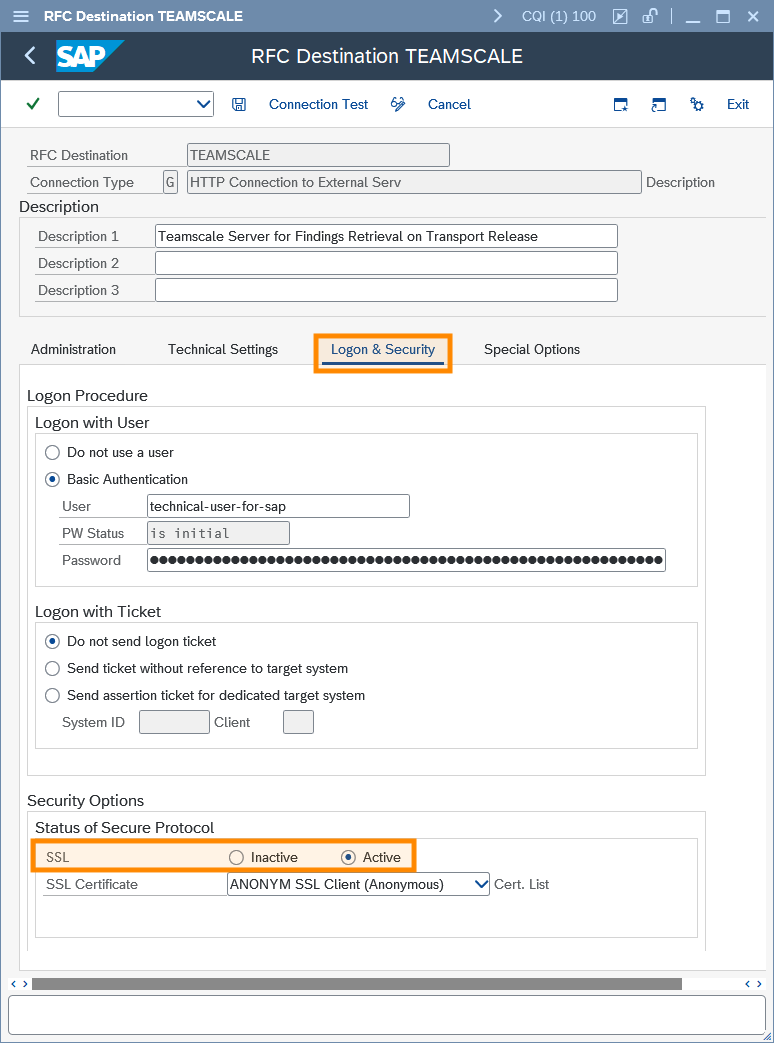
The Code Inspector check Teamscale Findings has to authenticate with the Teamscale server to retrieve findings. Its connection settings are configured via an HTTP destination created in transaction SM59. See SAP Help for how to create HTTP destinations. There, you can configure a connection-specific HTTP(S) proxy, timeout value and HTTP version. For authentication, you must use Basic Authentication with a valid Teamscale username and the respective Access Key.
HTTPS Requires Two Settings
If Teamscale is accessible via HTTPS, configure both of the following options in the SM59 connection settings:
- On the Technical Settings tab, enter the host and the HTTPS port of the Teamscale server.
- On the Logon & Security tab, set SSL to Active. You may have to scroll down within the tab to see this option.
The port alone does not enable HTTPS. While SSL is Inactive, the destination sends plain HTTP requests, even to port 443.
Verifying the HTTPS Connection to Teamscale
If Teamscale is accessible via HTTPS (see section Configuring HTTPS), some configuration steps might be necessary in the SAP system.
General HTTPS configuration
This section assumes that your SAP system is already configured to establish HTTPS connections, and focuses on importing the correct root certificate only. For a more detailed description of general prerequisites, cipher suite settings, or how to obtain the root certificate, please refer to the SSL Setup section of the abapGit documentation. It covers all these topics, and is not specific to abapGit for most of them.
To check whether your SAP system can reach Teamscale, open the HTTP destination in transaction SM59 and choose Connection Test. If the test succeeds, no further steps are necessary. If it reports SSSLERR_PEER_CERT_UNTRUSTED, a required root certificate is likely missing.
Importing TLS Root Certificates
Only import the CA Root Certificate
HTTPS server certificates are relatively short-lived and therefore re-issued frequently. In order to connect to an HTTPS server like Teamscale, you only need to explicitly add the Certificate Authority's (much longer-lived) root certificate to your SAP system's trust store. Importing individual server certificates is not required.
To import the root certificate, perform the following steps in transaction STRUST:
- Enter edit mode using the Display <-> Change button.
- Select SSL client SSL Client (Anonymous) on the left.
- In the Certificate section, click on the bottom-left button Import certificate.
- Choose the root certificate to import into the system.
- Select Add to certificate list.
- Save.
If the connection test still fails after importing the root certificate, see Troubleshooting SAP System Connections.
Test Activation
First, Code Inspector test Teamscale Findings must be activated:
- In transaction
SCI, select the action Code Inspector > Management of > Tests (or »Ctrl+Alt+F5«). - Mark the checkboxes at the check classes
/CQSE/CL_CI_CATEGORY_TEAMSCALE(category for Teamscale) and/CQSE/CL_CI_TEST_TS_FINDINGS(Teamscale findings test). - Save your changes.
Definition of a Check Variant
Second, a check variant which contains the Teamscale Findings test must be defined. In transaction SCI, add a new check variant and select the Teamscale Findings test:

Also, the required parameters of this test must be specified:
Teamscale Findings Parameters
There are several groups of parameters to define how to retrieve Teamscale findings and which ones to show: Connection parameters define how to connect to Teamscale, Baseline parameters define which time period to retrieve findings for, and Quality goal parameters reflect whether only new findings should cause messages, or also old findings in recently changed code.

| SM59 HTTP Destination name | An HTTP destination (type G) created in transaction SM59. See Configuring Connection Settings for details. |
| Teamscale project id | The project ID, or one of its alternative project IDs, of the Teamscale project for which findings should be retrieved. Note that the Project ID may be different from the more prominently displayed Project Name. If no project ID is provided, the check will query Teamscale for projects that are associated with the respective system ID. |
| Only new findings since (label) | Optional. If set, only findings which were introduced after the given baseline label are included. Baselines are managed in the Teamscale Web UI under Quality Control > Baselines) |
| Only new findings since (date) | Optional. If set, only findings introduced after the specified date are included. |
| Also finds. in changed code | If enabled and also one of the Only new findings since parameters or Filter old transport findings is set, not only new findings but also findings in code changed since the baseline are included |
| Filter old transport findings | If enabled, only findings that were introduced in a still-open transport request will be included. This setting should only be active in check variants used for ATC checks on transport release. Note that the creation date of the oldest relevant transport request is used. |
Baseline parameters are mutually exclusive
The three check parameters Only new findings since (label), Only new findings since (date), and Filter old transport findings all affect to which degree old findings should be returned. In order to have consistent information in all cases, only one of these parameters may be used. If you need different baseline settings for different use cases, e.g. one for on-demand checks and one for check on transport release, different check variants must be used.
Execute the Check Variant.
After the variant is saved, it can be executed like any other Code Inspector variant, e.g. by transaction SCI or from the ABAP Workbench (SE80) using the commands Check > Code Inspector or Check > ABAP Test Cockpit (ATC). Note that you must edit the DEFAULT variant if the Teamscale findings test should be executed when running these Check commands, unless you use command ABAP Test Cockpit (ATC) with ....
The results are displayed in the ATC results browser:

By clicking on the info button at the single messages (leaves in the tree), the Findings Details view of the Teamscale web UI opens, where e.g. more information of the finding can be viewed. Here, the finding can be assigned to a task or tolerated or marked as false positive finding. (Note that the info buttons at other nodes than the leaves are without any meaningful function.)
Integration with SAP Transport Management System
As described in the section above, the SAP Code Inspector test Teamscale Findings allows to retrieve findings from Teamscale and display these in the SAP system. Thus, Teamscale findings can be used in the SAP Transport Management System (TMS) like any other ATC checks. The prerequisites for this are the same as for regular ATC integration, so please make sure to follow the instructions above.
Depending on your SAP release and patch level, different options may be available for configuring ATC runs on transport release or task release.
SAP Note for check on task release
In case one of ATC configuration options is not available in your system (in particular the option to execute checks on task release), please check SAP Note 2495410 (login required), which enables the respective functionality on older systems.
To enable the ATC check on transport release, the following configuration is required:
- Define a Code Inspector variant which executes the test Teamscale Findings (see previous section).
- Ensure that checks on request release are globally activated: Transaction
SE03(Transport Organizer Tools), item Administration > Global Customizing, setting for Check Objects when Request Released.
- In transaction
ATC, under ATC Administration > Setup > Configure ATC, configure the respective Code Inspector variant and the setting ATC: Behavior on Release. Choose Inform on Errors (recommended) or Block on Errors.
- Save.
SAP Note to only consider changed sub-objects
In order to best follow the campsite rule, we suggest implementing SAP Note 3392749 (login required). This adds the option Restrict Findings to Objects on Transports to the ATC settings. Without it, if one method of a class was changed, ATC will report findings for all other method includes (changed or unchanged) as well.
When releasing a transport request or task, depending on your configuration, the check variant will be executed, query Teamscale findings, and display them or block the release. In case individual findings should not block the release, we recommend using Teamscale's toleration feature.
