
How to Review Merge Requests with AI Agents
Teamscale can review merge requests using review agents: AI agents backed by large language models that inspect the changes, use tools to explore the code base, and produce review comments. Several agents with different focus areas can review the same merge request, their comments are verified and consolidated, and the result is shown in Teamscale and can be posted back to the code collaboration platform.
Prerequisites
- An AI model provider must be configured, and a chat model routing rule must select a model for the
MERGE_REQUEST_REVIEWtask. Additionally, routing rules forMERGE_REQUEST_REVIEW_VERIFICATIONandMERGE_REQUEST_REVIEW_CONSOLIDATIONare highly recommended. See AI Model Providers for details. - The project must be connected to a code collaboration platform with merge request analysis enabled, for example, GitLab, Bitbucket Data Center, or GitHub.
- At least one review agent must be linked to the project.
Review Agents
A review agent is a reusable review configuration and provides the context and tools to an LLM. It consists of:
- Main prompt: The overall instructions to the agent, for example, its persona and focus.
- Review rules: Specific instructions on top of the main prompt, where each rule is one focused check.
- Tools: Functions the agent can choose to call while reviewing. The agent decides when to use them, and only the tools you enable are available to it. Enabling too many tools can cause some LLMs to deviate from the initial goal.
- Attachments: Named context added to the prompt. This is added to the initial agent prompt, and you can refer to an attachment by its name in the main prompt.
The available tools are:
| Tool | Gives the agent access to |
|---|---|
| Code search | Searching and reading files in the code base beyond the diff. |
| Dependency lookup | Incoming and outgoing dependencies of the changed files. |
| Commit history | The version history of files, including the commit message and their content at older revisions. |
| Finding descriptions | The descriptions of Teamscale's finding categories. |
| Existing findings | The findings present in the changed version of the code. |
| Added findings | The findings introduced by the merge request. |
| Work items | Searching and reading work items: issues, spec items, and test items. |
The available attachments are:
| Attachment | Content |
|---|---|
| Issue Info | The issue linked to the merge request, if one exists. Optionally includes the issue's metadata. |
| Merge Request Info | The merge request's title and description. |
| Agent Instruction Files | Instruction files for AI coding agents contained in the repository (CLAUDE.md, AGENTS.md, Copilot instructions) that apply to the changed files. |
Teamscale ships with a set of preconfigured review agents. You can use them as they are, adjust them to your needs, or use them as templates for your own agents. Your edits to the shipped agents are never overwritten by Teamscale updates.
Review Agents and Model Routing A review agent does not specify which model it uses. Instead, the model is
selected by the AI model routing rules, where the agent's name is available as the task details attribute. This allows routing different agents to different models, for example, a stronger model for the Security Review agent. A routing rule can even select multiple models for the same agent.
Managing Review Agents
Review agents are managed in the AI Assistance perspective in the Review Agents view.
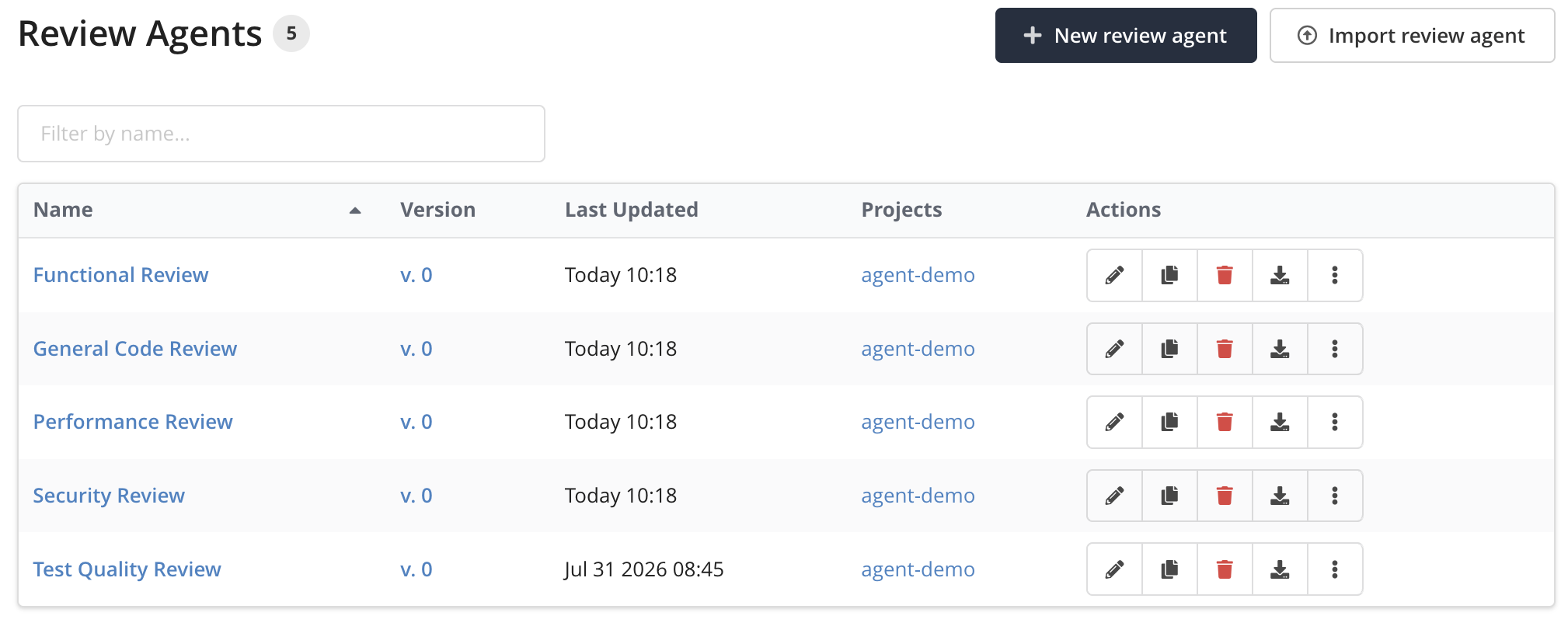
Creating a review agent requires the global Create Review Agents permission. The creator becomes the owner of the agent and can grant other users access via role assignments, analogous to other configuration objects such as dashboards.
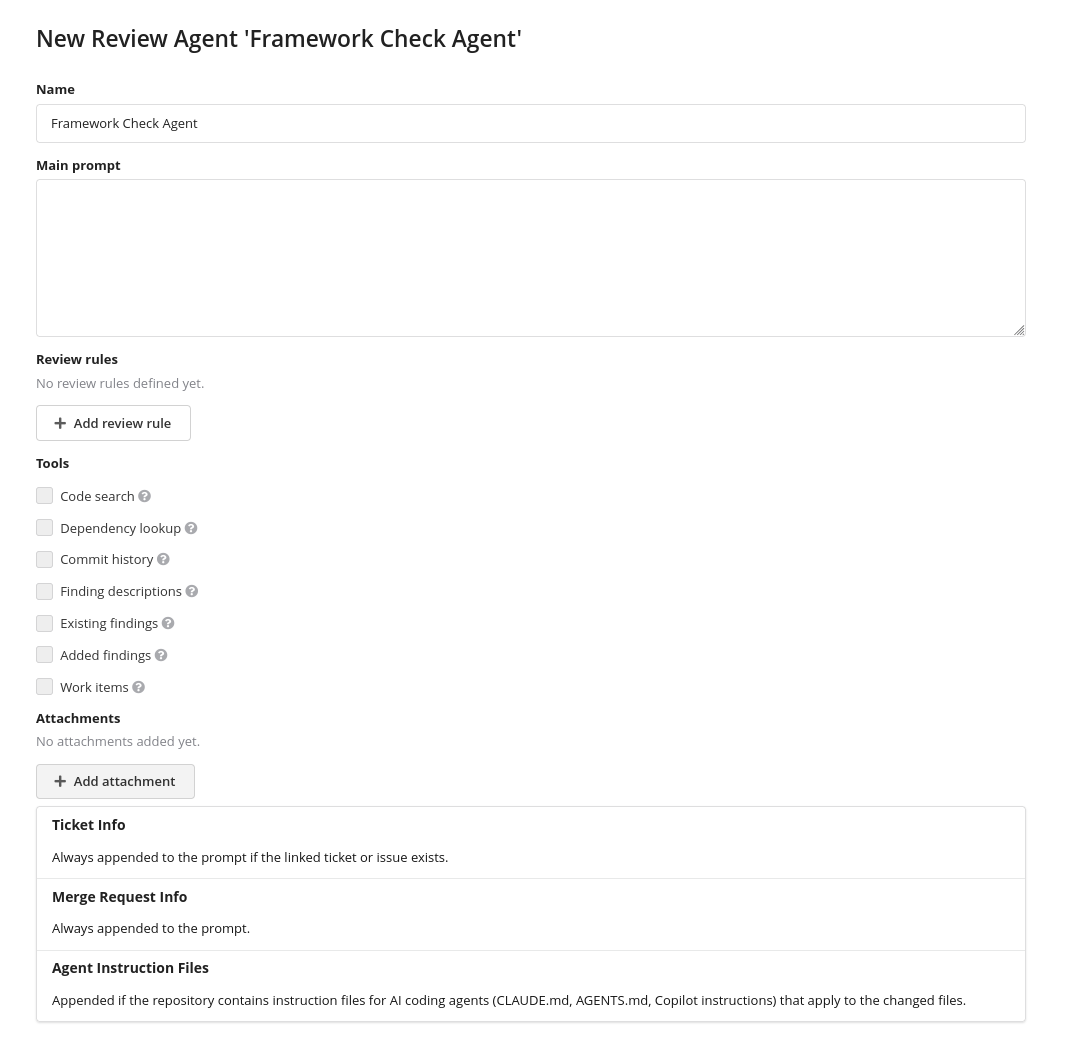
Every saved change creates a new version of the agent, and you can add a comment describing the change. The version history and a comparison of any two versions are available from the Version column of the Review Agents view, so you can track how an agent's instructions evolved. Review agents can also be exported to and imported from .tsreviewagent files, which allows sharing them between Teamscale instances.
Linking Review Agents to Projects
Review agents are global objects, but a review can only run agents that are explicitly linked to the project. This keeps control over which prompts, tools, and model costs apply to each project with the project administrators.
To link review agents, edit the project in the Project Configuration perspective and select the agents in the Review Agents field of the Agentic Review Configuration section.
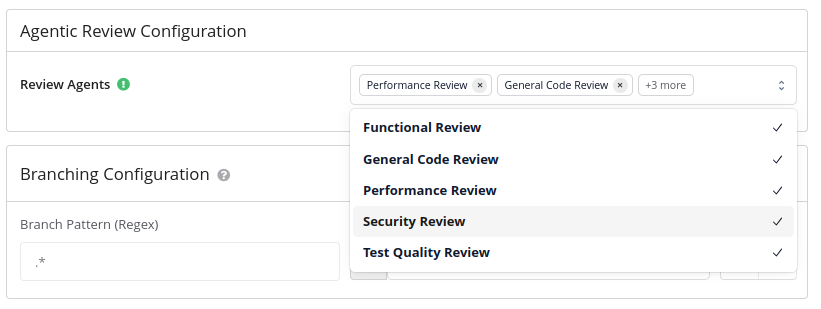
A review agent cannot be deleted while it is still linked to a project.
Running a Review from the Web UI
Open the merge request in the Activity perspective and switch to the Agentic Review tab. Select the review agents to run (all linked agents are preselected) and click Generate new Review.
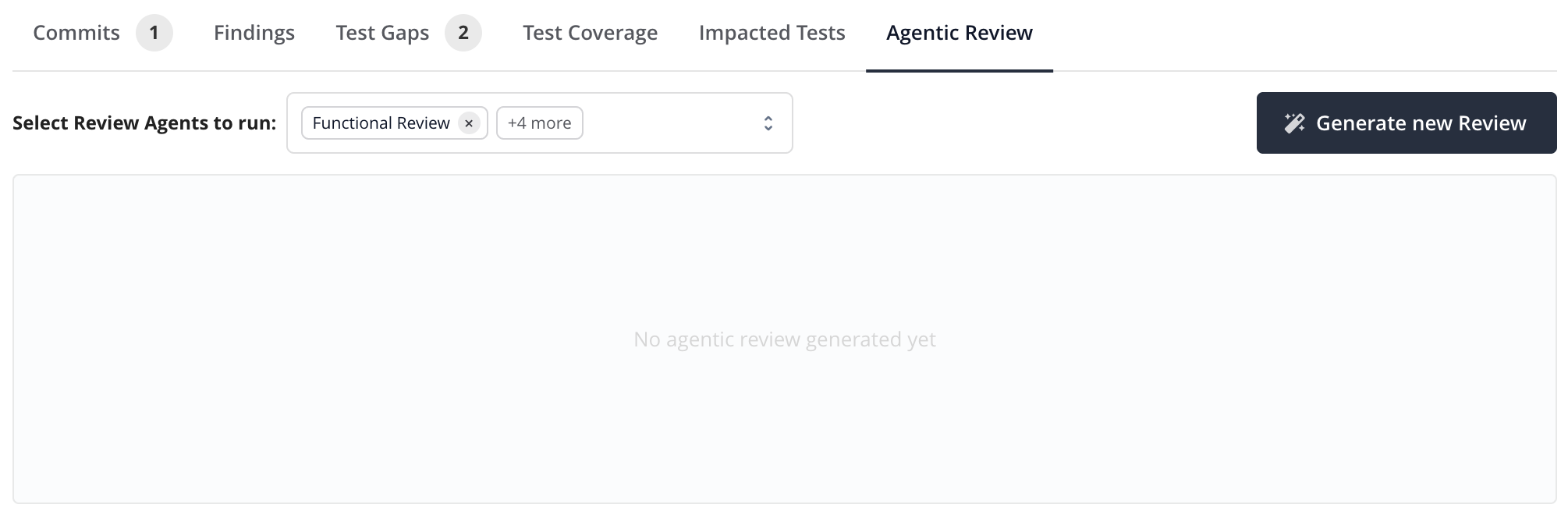
The review runs as a background job on the server, so you can leave the page and come back later. While it is running, a progress panel shows one step per review agent, including the agent's current activity, followed by the Comment Verification and Review Consolidation steps.
Every review that is currently running on the merge request gets such a panel, including reviews that other users started and reviews triggered from the code collaboration platform. The Cancel Review button on a panel stops that one review. You can always cancel your own reviews; canceling the review of another user requires the permission to edit the project, because it takes away a result that someone else is waiting for.
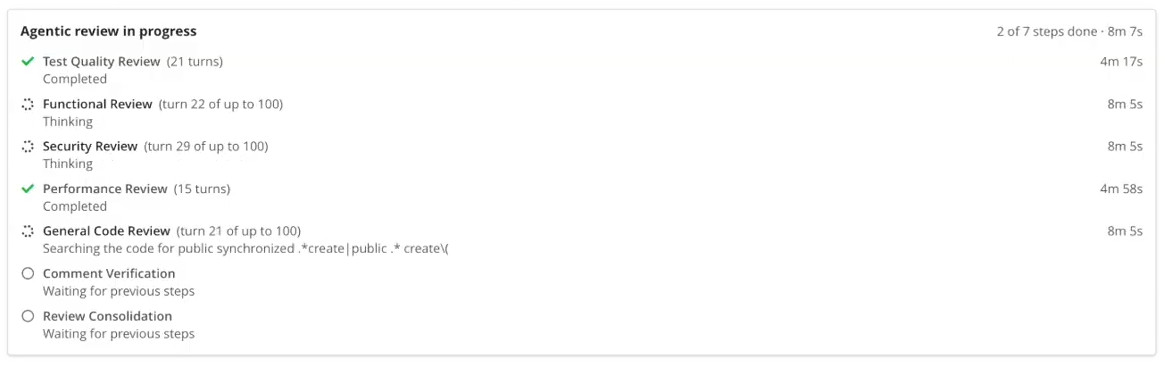
Behind the scenes, each generated review passes through two additional phases that improve its quality:
- Verification: Each review comment is checked by a separate model conversation that tries to refute it against the actual code. Refuted comments are dropped, which reduces false positives. If no AI model is configured for the task
MERGE_REQUEST_REVIEW_VERIFICATION, this step is skipped and all comments are preserved. - Consolidation: Comments from different agents that describe the same problem are merged into a single comment, attributed to all reporting agents. When several agents agree on a comment, this is a strong signal for its relevance. If no AI model is configured for the task
MERGE_REQUEST_REVIEW_CONSOLIDATION, this step is skipped and duplicates are preserved.
The result consists of a summary and a list of review comments. Each comment references the affected file and lines, is classified as Major or Minor, can show the affected code inline, and names the review agents that found it. If the source branch changes after the review was generated, Teamscale marks the review as possibly outdated.
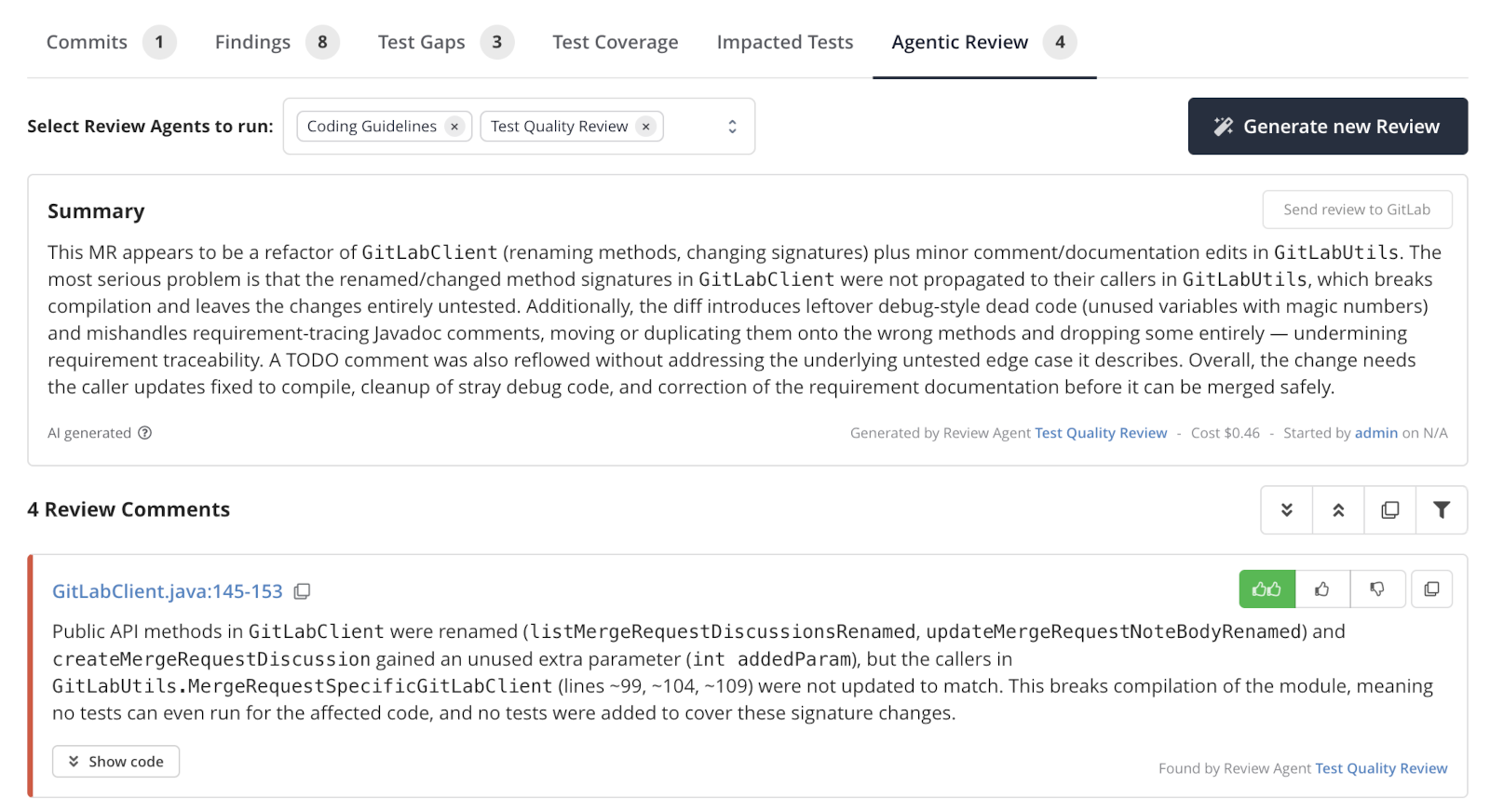
The metadata line below the summary shows the estimated cost of the review, broken down by review, verification, and consolidation step. Cost estimation requires AI pricing to be configured.
Past reviews of the same merge request remain accessible via Show past reviews. Reviews are deleted automatically after 90 days.
Rating Review Comments
Each review comment can be rated by every user with one of three ratings: Very helpful, Helpful, or Not helpful / false positive.
Rating comments serves two purposes: you can filter the comment list by rating, for example, to hide comments already dismissed as not helpful, and the ratings are aggregated in the Agentic Review Statistics chart of the AI Usage view, which shows how helpful the generated reviews are over time and thus helps tuning your review agents. The Agent Benchmark view uses the ratings to compare review agents and models.
Ratings are personal: each user sees and edits only their own rating.
Advanced Configuration: Reviewing with Multiple Models
When the routing rule for the MERGE_REQUEST_REVIEW task selects multiple models with the Route to all models behavior, each selected review agent runs once per model. This can be used to benchmark models against each other with the same agent configuration, or to obtain more intensive review feedback by combining the perspectives of several models in a single review.
The runs of an agent are shown as <agent name> [<model name>] in the review progress and in the comment attribution, so you can tell the models' results apart. The cost breakdown of the review records each run separately as well, including the model that served it. The consolidation step merges the comments of all runs just like comments from different agents, so a comment reported by several models is a strong signal, and duplicates do not clutter the review.
The verification and consolidation steps always use a single model. If their routing rules select multiple models, only the first selected model is used.
Triggering a Review from the Code Collaboration Platform
On GitLab and Bitbucket Data Center, merge request authors can trigger an agentic review directly from the merge request, without opening Teamscale.
To enable this, activate the option Enable Agentic Reviews for merge requests on the project's GitLab or Bitbucket Data Center connector. The trigger is delivered through the platform's webhook, so the webhook configured for the repository must include comment events: the Note Hook on GitLab, and Pull request: Comment added (pr:comment:added) on Bitbucket Data Center. Webhooks that Teamscale registered itself are updated automatically when the connector is saved. If you created the webhook manually, add that event yourself, see Manual Creation of Webhooks for GitLab and Manual Creation of Webhooks for Bitbucket.
The author then posts a comment that begins with /teamscale review on an open merge request including drafts. Only the merge request's author can trigger the review, which prevents other users from starting potentially costly AI reviews on someone else's merge request. Since the comment carries no agent selection, a review triggered this way always runs all review agents linked to the project.
Teamscale acknowledges the command immediately and posts a progress comment linking to the merge request view in Teamscale. On GitLab the acknowledgement is a reaction on the trigger comment. On Bitbucket Data Center it depends on the delivery channel (see the channel options below): a reply comment below the trigger comment for pull request comments, and an emoji reaction on the trigger comment for the Code Insights report. It starts at 👀 received and turns into ✅ when the review has been posted, or ❌ if the review did not run.
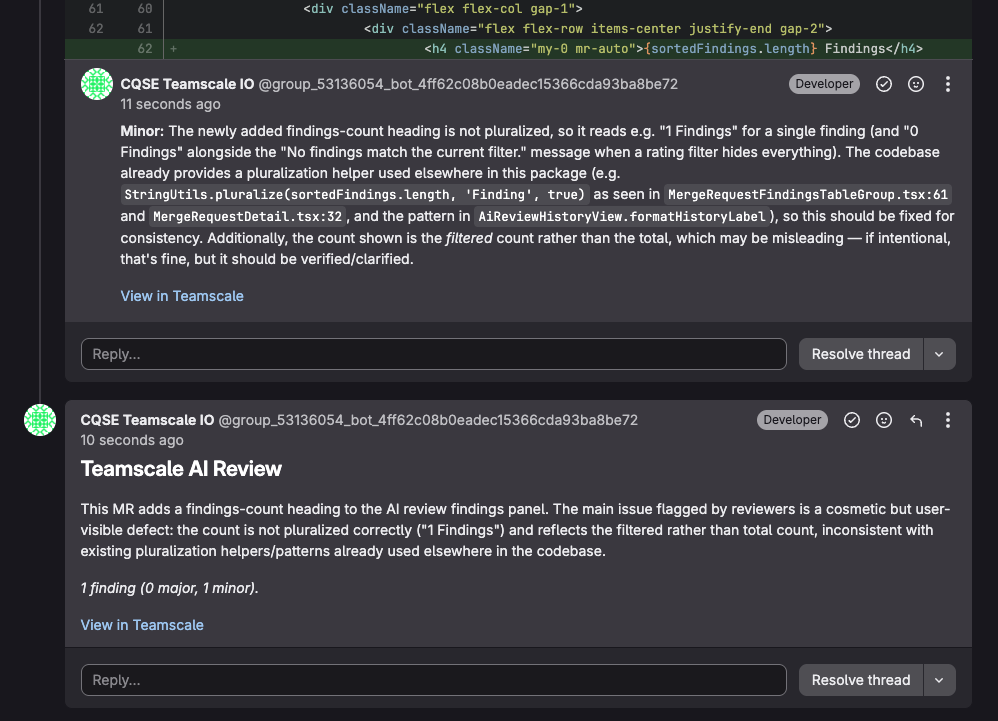
When the review finishes, each review comment is posted as an inline discussion on the affected line and the summary is posted as a reply to the trigger comment.
On Bitbucket Data Center, the connector options Add Detailed Line Comments For Findings and Test Gaps as Pull Request Comments and Add Detailed Line Comments For Findings and Test Gaps as Code Insights Report additionally choose how the review is delivered: as inline pull request comments, or as Code Insights report named Teamscale Agentic Review. An agentic review is always delivered through exactly one of the two channels: when both options are enabled, the Code Insights report takes precedence. At least one of the two options must be enabled while agentic reviews are enabled, because with both disabled the review comments of a triggered review would be silently lost; saving the connector enforces this. The summary follows the channel as well: it is posted as a comment on the pull request comments channel, and it becomes the report's description on the Code Insights channel. On the Code Insights channel, a triggered review posts no comments at all: the acknowledgement, including a failed review's ❌, is shown solely as an emoji reaction on the trigger comment, and no progress comment is posted.
When a review is re-run, the previous review's inline discussions and summary are removed to avoid clutter, and its acknowledgement changes to ☑️ to mark it as outdated. Discussions where a user has replied are kept, because they may contain an ongoing conversation.
Triggering a Review from GitHub
For GitHub, pull request authors can trigger an agentic review the same way, by commenting on the pull request.
To enable this, activate the option Enable Agentic Reviews for merge requests on the project's GitHub connector. The trigger is delivered through the GitHub App's webhook, so the app must be subscribed to the Issue comment event; see Installation of the Teamscale GitHub App for the events and permissions the app needs. For an app that is already installed, add that event to its subscriptions.
The author then posts a comment beginning with /teamscale review on an open pull request including drafts. Only the merge request's author can trigger the review, which prevents other users from starting potentially costly AI reviews on someone else's merge request. Since the comment carries no agent selection, a review triggered this way always runs all review agents linked to the project.
Teamscale acknowledges the command with an 👀 reaction on the comment and opens an Agentic Review check run on the pull request's head commit. When the review finishes, the reaction changes to 👍 (or 👎 if the review failed) and the check run reports the result: the review's summary becomes the check run's summary, and each review comment an annotation on the affected line. The check run is the only place the result is written, so a re-run updates it in place instead of leaving a trail of outdated comments behind.
Check Runs Belong to a Commit
A check run reports on the commit it ran against, so pushing to the pull request leaves the previous review's check run on the commit it reviewed and a new /teamscale review opens a fresh one on the new head commit. If Teamscale reviews a different commit than the one the check run was opened on, for example because a push arrived while the review was waiting, the result is reported on the reviewed commit, and the original check run names that commit.
Posting a Review to the Code Collaboration Platform
A review generated in the web UI can also be posted to the merge request manually using the button in the Agentic Review tab that names the connected platform, for example Send review to GitLab. This requires the project permission Send AI Reviews to Code Collaboration Platform and the connector option Enable Agentic Reviews for merge requests. On Bitbucket Data Center, the same channel choice as for triggered reviews applies: the review is posted as pull request comments, or — when the Code Insights option is enabled — as the report alone, without posting any comment. Comments on files or lines that are not part of the merge request's diff cannot be placed on it; the summary then states how many comments could be posted. On GitHub, the review is written to the pull request's Agentic Review check run, the same one a /teamscale review comment writes to, so pressing the button after a triggered review replaces that result instead of adding a second one.
Benchmarking Review Agents
The Agent Benchmark view in the AI Assistance perspective measures how well your review agents perform, based on past reviews and their comment ratings. It evaluates each combination of review agent and model separately, because the same agent can produce very different results on different models. The view covers the reviews of all projects you can access.
Use the Time frame selector to choose which reviews to include. A review belongs to the time frame in which it started.
The benchmark uses these rules for all numbers:
- Runtime and cost cover only the agent's own review step, without verification and consolidation.
- If several agents report the same comment, the comment counts for each of them.
- If several users rated a comment, the most critical rating counts.
- Precision is the share of rated comments that were rated Very helpful or Helpful. Unrated comments are not included.
Overview
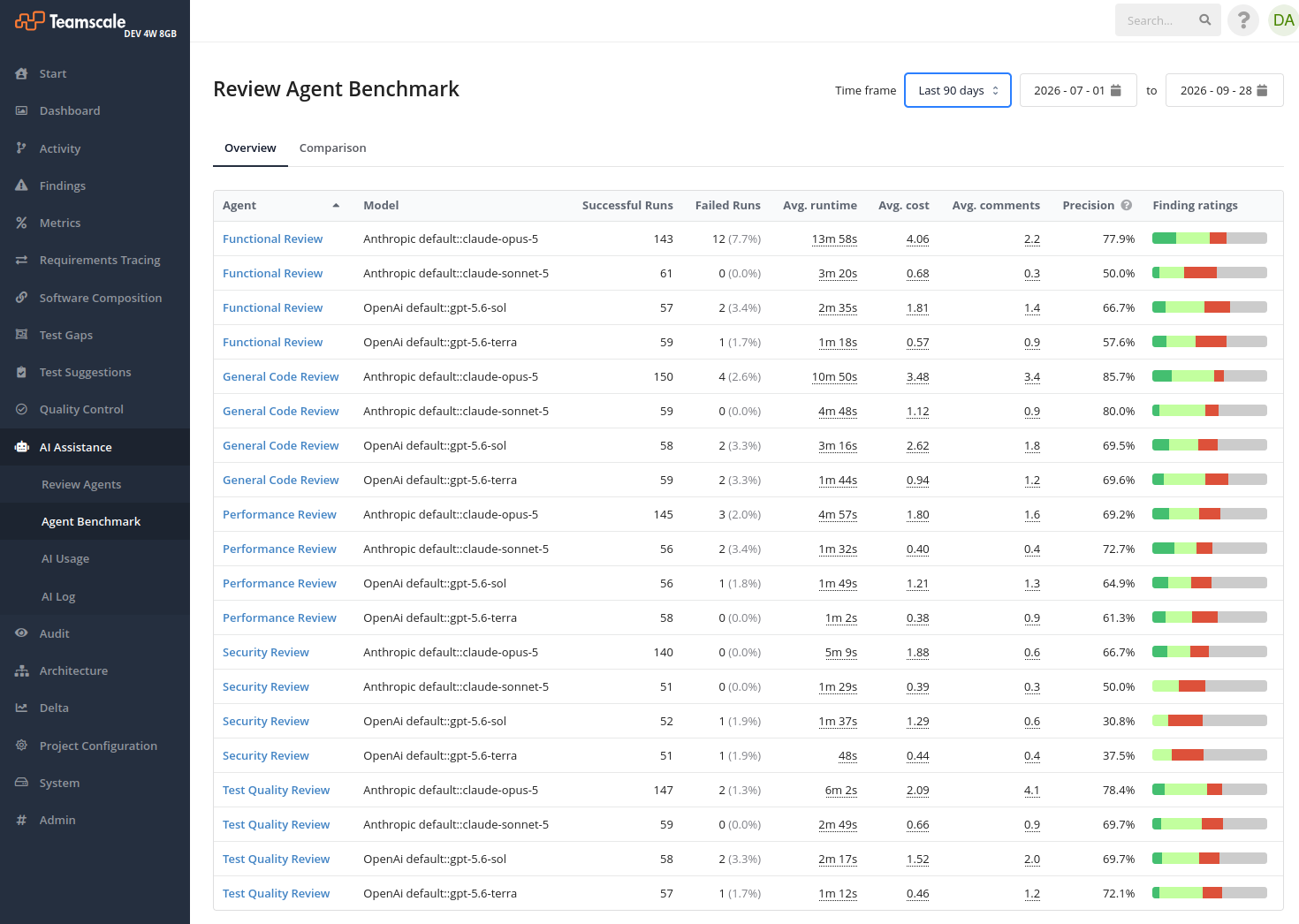
The Overview tab shows one row per agent and model combination. It lists the number of successful and failed runs, the average runtime, cost, and number of comments per run, the precision, and the distribution of the comment ratings. Hover over an average to see its median, percentiles, and range.
Comparison
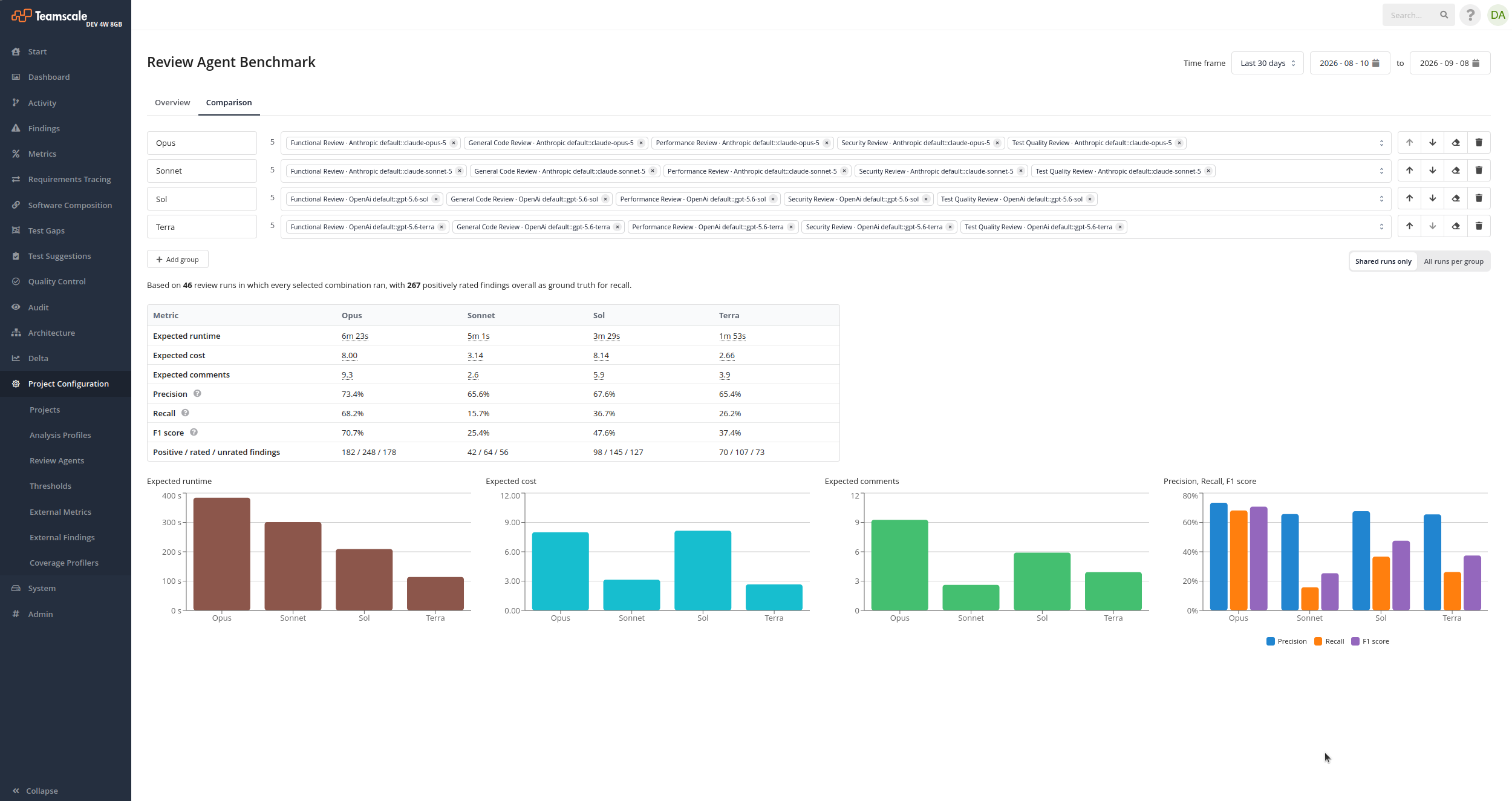
The Comparison tab compares groups of agent and model combinations against each other. For example, you can compare one agent on two models, or a set of agents against a single agent. A group with several combinations represents a review in which all of them run together.
To compare, add the combinations to the groups. Use Add group to compare more than two groups. You can rename, reorder, and remove groups.
A review counts for a group only if all combinations of the group ran successfully in it. For each group, the table shows the number of reviews, the expected runtime, cost, and number of comments per review, and the precision. The runtime of a group is the longest runtime of its combinations, because the agents run in parallel. The cost of a group is the sum of the costs of its combinations.
Choose which reviews to compare:
- Shared runs only: Only reviews in which all combinations of all groups ran count. All groups are measured on the same merge requests. This mode additionally shows Recall and F1 score.
- All runs per group: Each group counts all reviews in which its own combinations ran. This provides more data, but the groups may be measured on different merge requests.
Recall is the share of all positively rated comments that the group reported. All positively rated comments of the selected combinations in the shared reviews form the basis for recall. The F1 score combines precision and recall into one value. Recall and F1 score require at least two groups.
Collecting Comparable Data
The Shared runs only mode needs reviews in which all compared combinations ran on the same merge request. To collect such reviews, run several agents on the same merge requests, or review with multiple models. Rate the comments of these reviews to obtain precision and recall.
Monitoring Costs and Debugging
Every model interaction of an agentic review is recorded in the AI Log, including the full prompts and responses. This is the first place to look when a review behaves unexpectedly, for example, to inspect which tools an agent called and what instructions it received.