
Start Perspective
The Start perspective provides a personalized entry point to Teamscale. It is designed to give you quick access to the most relevant information across all your projects in one place.
For new users first opening the Start Perspective, a Getting Started info panel is shown at the top of the page. It contains quick links to the documentation and support, as well as an option to set the Start perspective as your default view (instead of the Dashboard perspective).
Once you have created new projects or been granted access to existing projects, several sections on the Start perspective will show you personalized information and entry points to further explore the data available in Teamscale.
My Projects
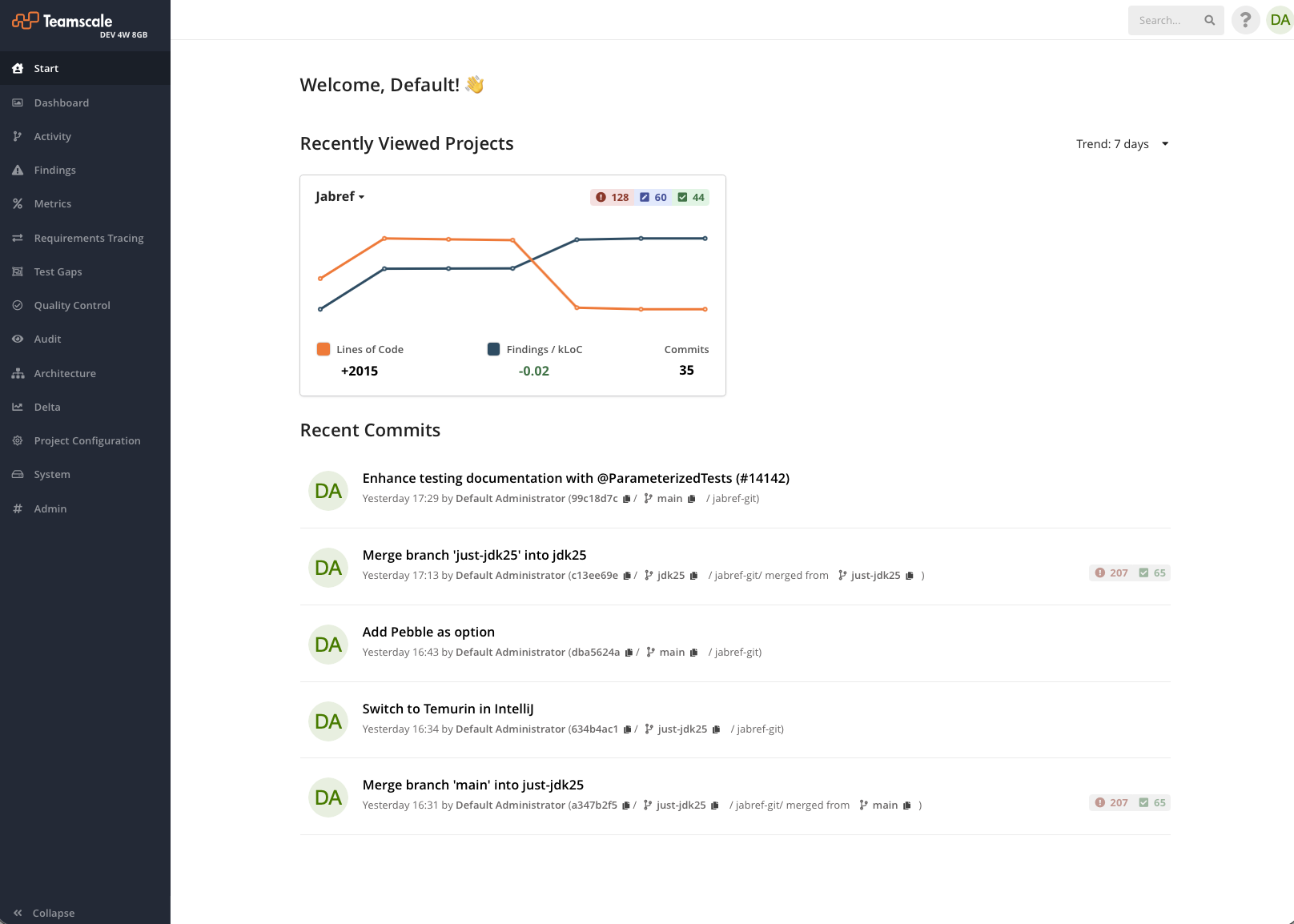
The My Projects section displays cards for the projects you have recently interacted with (up to three). Each project card shows:
- Project name with a dropdown menu linking to the project's Dashboard, Activity, Merge Requests, Issues, and Test Gaps perspectives.
- Findings churn badge summarizing the number of added, in-changed-code, and removed findings in the selected time range.
- Trend chart visualizing Lines of Code and Findings Density over the selected time range.
- Metric deltas for Lines of Code, Findings/kLoC, and Commits, showing the change over the selected period. Hovering over a delta reveals the total value.
You can adjust the trend time range using the Trend dropdown at the top right of this section.
My Open Tasks
If you have open Teamscale tasks assigned to you, they are listed in the My Open Tasks table. Tasks are sorted by last updated (most recent first) by default.

This section is hidden if you have no open tasks.
Recent Merge Requests
The Recent Merge Requests table lists merge requests that you are involved in, either as author, assignee, or reviewer.

This section is hidden if there are no relevant merge requests.
Recent Commits
The Recent Commits section displays your latest commits across all projects.
Setting the Start Perspective as Default
By default, Teamscale opens the Dashboard perspective after login. You can switch to the Start perspective as your default in two ways:
- Use the toggle in the Getting Started panel on the Start page.
- Go to your user Preferences (by clicking on your avatar in the Web UI's upper right corner) and change the default perspective setting.