AI Model Providers
All AI-assisted features in Teamscale, such as agentic merge request reviews or code summaries and AI-suggested finding resolutions, are backed by large language models (LLMs). Teamscale does not ship or host a model itself. Instead, you connect Teamscale to one or more model providers and define routing rules that select a model for each AI request.
This page describes the corresponding settings, which are located in the Admin perspective under Settings in the category AI Model Providers. Editing these settings requires the global Edit Server Options permission. Changes take effect immediately, without a server restart.
Data Sent to Model Providers
AI features send parts of your data to the configured model provider, for example, source code, diffs, finding descriptions, and issue contents. Make sure the providers and models you configure comply with your organization's data protection policies. For full control over your data, you can use a self-hosted provider, such as Ollama or any OpenAI-compatible local endpoint.
There is no separate global on/off switch for AI features. A feature is available exactly if a routing rule selects a model for it. Without any routing rules, all AI features are disabled.
Configuring Model Providers
Teamscale supports the following model providers:
- OpenAI and Compatible Providers: The OpenAI API or any endpoint that implements the OpenAI API, for example, OpenRouter or Microsoft Foundry.
- Anthropic Provider: The Anthropic API or a compatible endpoint.
- Gemini Provider: The Google Gemini API.
- Ollama Provider: A self-hosted Ollama server.
Each provider option is a multi option: you can add several independently named entries, for example, to use separate OpenAI accounts for different teams. The entry name becomes part of the qualified model name used in routing and has the form <provider> <entry name>::<model name>, for example, OpenAi production::gpt-5 or Ollama local::llama3.
OpenAI and Compatible Providers
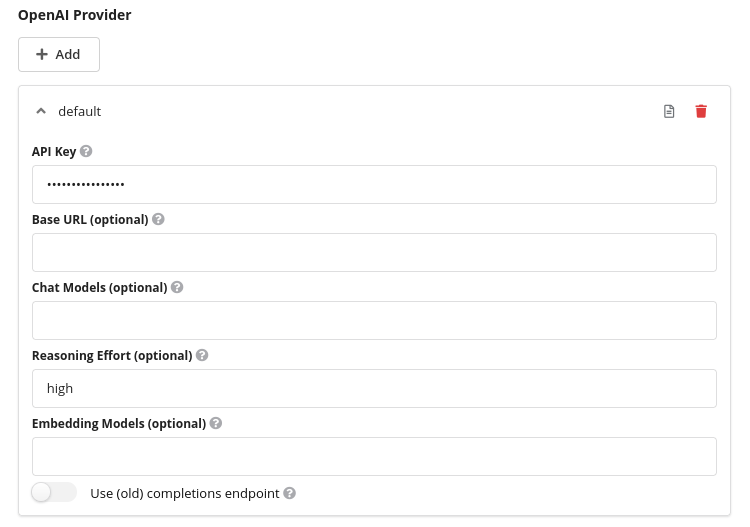
- API Key: The API key to use for OpenAI or for the compatible endpoint.
- Base URL (optional): An explicit base URL, which allows connecting to OpenAI-compatible third-party or self-hosted endpoints. Leave empty to use the official OpenAI API.
- Chat Models (optional) and Embedding Models (optional): Comma-separated lists of models that may be used. Leave empty to allow all suitable models offered by the endpoint's model catalog.
- Reasoning Effort (optional): Guides the model on how much to think when performing a task. Leave empty to use the model's default. Possible values are
none,low,medium,high, andxhigh. - Use (old) completions endpoint: By default, the provider uses the more modern responses endpoint of the API. Some third-party providers only implement the older completions endpoint, so enable this option for those endpoints.
Connecting OpenAI-Compatible Endpoints
Many services offer access to models of various vendors through the OpenAI API. To use one of them, set Base URL to the service's OpenAI-compatible endpoint and enter its API key.
Always fill in Chat Models and Embedding Models explicitly for such a service. These services name their models differently from OpenAI, while Teamscale's automatic detection recognizes OpenAI's naming scheme only, and would therefore hide most of the available models.
Two examples:
- OpenRouter: Use the base URL
https://openrouter.ai/api/v1. Model names have the form<vendor>/<model>, for example,anthropic/claude-sonnet-4.5, and are listed at openrouter.ai/models. OpenRouter provides chat models only, so leave Embedding Models empty and configure a second provider entry for the embedding-based test clustering. - Microsoft Foundry: Use the base URL
https://<your-resource>.openai.azure.com/openai/v1/and the API key of your Azure OpenAI resource. Only this/openai/v1/path speaks the OpenAI API; Foundry's other endpoints use Azure's own inference API, which this provider cannot address. Authentication through Microsoft Entra ID is not supported, as the provider only sends an API key. Model names are the deployment names you chose when deploying a model, not the vendor's model names, and are listed with your deployments in the Foundry portal.
If such a service rejects Teamscale's requests, enable Use (old) completions endpoint. Neither of the two services above needs this option, as both implement the responses endpoint.
Anthropic Provider
- API Key: The API key to use for Anthropic.
- Base URL (optional): An explicit base URL for compatible endpoints. Leave empty to use the official Anthropic API.
- Chat Models (optional): A comma-separated list of models that may be used. Leave empty to allow all models offered by the API.
- Thinking: Enables adaptive thinking, which lets the model dynamically determine when and how much to use extended thinking. Enabled by default.
- Effort (optional): Controls how many tokens the model uses when responding, trading off between response thoroughness and token efficiency. Possible values are
low,medium,high,xhigh, andmax.
The Anthropic provider does not offer embedding models, as the Anthropic API does not provide an embedding endpoint.
Gemini Provider
- API Key: The API key to use for the Gemini API.
- Base URL (optional): An explicit base URL. Leave empty to use the official Gemini API.
- Chat Models (optional) and Embedding Models (optional): Comma-separated lists of models that may be used. Leave empty to allow all suitable models.
- Thinking Level (optional): Controls the reasoning behavior, recommended for Gemini 3 models and onwards. Possible values are
minimal,low,medium, andhigh.
Ollama Provider
- Base URL: The base URL to reach the Ollama server.
- Chat Models and Embedding Models: Comma-separated lists of models. These lists are mandatory, as Ollama does not offer a model catalog that Teamscale could query.
- Enable Thinking: Enables thinking mode for the model.
When saving a provider entry, Teamscale validates the connection and reports errors, for example, a missing API key or an unreachable endpoint.
Additional HTTP Headers
Every provider entry has a collapsed Additional HTTP Headers section at the end of its settings. The headers configured there are added to every request Teamscale sends to the provider, including its model catalog lookups. This is needed when an API gateway sits in front of the provider and demands its own authentication or attribution headers, which the provider settings above cannot express. Leave the section untouched if your provider does not need such headers.
Each header consists of a name and a value. The value is sent as-is, unless it is exactly one of the following placeholders:
| Value | Replaced with |
|---|---|
$external:NAME | The password of the external account named NAME, as configured under External Accounts in the Admin perspective. Use this for secrets, so that they are stored encrypted with the account instead of in the header value. |
$project | The primary public ID of the project the request belongs to. |
$user | The username of the user who triggered the request. |
$property:NAME | The value of the project property NAME of the project the request belongs to. |
A placeholder must make up the whole value, so Bearer $external:gateway is sent literally. To add a prefix or otherwise rewrite a value, add one or more transformations to the header. A transformation consists of a regular expression and a replacement, which may reference capture groups as $1, and replaces every match in the value. The transformations of a header are applied in order, after the placeholder was resolved. For example, the transformation replacing ^(.+)$ with Bearer $1 turns the password of an external account into a bearer token.
Placeholders without a value in the current request resolve to the empty string, for example, $project in a request made outside of a project, or $user in a review triggered by a merge request rather than by a user. A header whose value is empty after applying the transformations is not sent at all. If such a header must always be present, add a transformation that replaces ^$ with a default value.
A configured header replaces a header of the same name that Teamscale would send otherwise, which allows overriding the provider's own authentication header. Saving the provider entry validates the header names, the placeholders, and the regular expressions, and checks that referenced external accounts exist. Fixed values and replacements may only contain printable ASCII characters and tabs, because an HTTP header cannot carry anything else; a placeholder that resolves to such a value makes the request fail instead.
Request Timeout
Teamscale streams every model response, so a request only times out when no further response chunk arrives for ten minutes. A long generation therefore finishes as long as the model keeps producing output. If your models need longer before they send anything at all, for example, slow self-hosted models, start the Teamscale JVM with -Dcom.teamscale.ai.request-timeout-seconds=<seconds> to raise the limit. A single model turn is additionally capped at thirty minutes, so raising the property beyond that value has no effect on one turn. This second limit exists because a stream that never signals its completion cannot be detected by the per-chunk timeout, and would otherwise block the waiting task forever.
AI Model Routing
The AI Model Routing option determines which model handles which AI request. It consists of two rule lists: Chat Model Routing for chat models and Embedding Model Routing for embedding models.
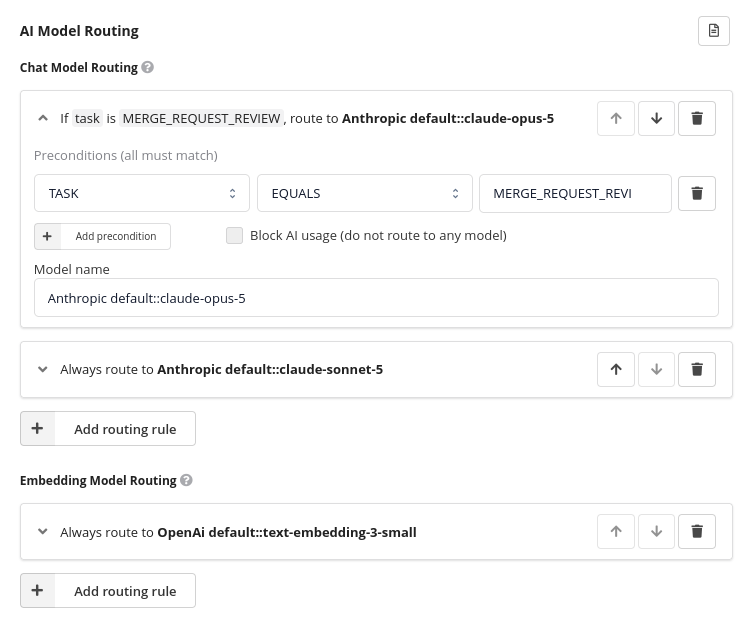
Each rule consists of a target model and a list of preconditions. The rules are evaluated top to bottom, and the first rule whose preconditions all match is applied. If the selected model is currently not available, for example, because its provider entry was removed, evaluation continues with the next rule, so you can define fallback models. If no rule matches, the corresponding AI feature is disabled for that request.
Instead of a target model, a rule can also block AI usage. This lets you explicitly disable AI features for certain users, groups, projects, or tasks, even if a later catch-all rule would select a model.
Preconditions compare an attribute of the request against a value, using one of the operations equals, not equals, matches (regular expression), or does not match. All comparisons are case-insensitive, and regular expressions must match the whole value. A precondition on an attribute that has no value in the current request never matches. For example, a rule with a project precondition never applies to requests made outside of a project context.
The available attributes are:
| Attribute | Description |
|---|---|
| User | The name of the user triggering the AI request. |
| Group | Matches if any of the user's groups matches. |
| Project | The ID of the project the request belongs to. |
| Task | The AI task being performed, see the table below. |
| Task complexity | The built-in complexity class of the task, which allows routing hard tasks to stronger models. |
| Task details | Additional context of the task, such as the name of the review agent used for a merge request review. |
The following chat tasks exist:
| Task | Complexity | Used for |
|---|---|---|
SUMMARIZE_CODE | Low | Code summaries in the code file view. |
FIX_FINDING | Medium | AI-suggested finding resolutions. |
MERGE_REQUEST_REVIEW | High | The review agents in agentic merge request reviews. |
MERGE_REQUEST_REVIEW_VERIFICATION | Medium | Verifying agentic review comments against the code. |
MERGE_REQUEST_REVIEW_CONSOLIDATION | Medium | Merging agentic review comments from multiple review agents. |
The embedding task TEST_CLUSTERING (complexity medium) is used for clustering similar tests in the Test Suggestions perspective, which powers AI Test Clustering.
Getting Started
A single rule without preconditions that routes to a capable general-purpose model is enough to enable all AI features. You can refine the routing later, for example, to use a cheaper model for low-complexity tasks or to restrict AI usage to specific projects.
Advanced Configuration: Routing to Multiple Models
Instead of a single model, a rule can select several models in its Models field. An additional Multi-model behavior dropdown then defines how the selected models are used:
- Route to a random one of the models: Teamscale picks one of the selected models at random for each request. This can be used to spread an experiment or benchmark across several models, or to balance load between several endpoints.
- Route to all models: The rule provides all selected models at once. Most AI features work with a single model and simply use the first selected model. Agentic merge request reviews, however, run every review agent once per selected model, see reviewing with multiple models.
In both cases, selected models that are currently unavailable are skipped. Only if none of the selected models is available, evaluation continues with the next rule, so fallback rules keep working.
Saving the settings validates the availability of every selected model.
AI Pricing
The AI Pricing option configures per-model token prices, which Teamscale uses to estimate the cost of AI interactions. The estimated costs are shown in the AI Log and the AI Usage view as well as for each agentic review. Prices must be configured manually because they depend on the provider, the model, the provider's current price list, and potentially additional discounts that might apply to you, none of which Teamscale can know reliably. Pricing is used for cost transparency only; Teamscale does not enforce any budget or quota.
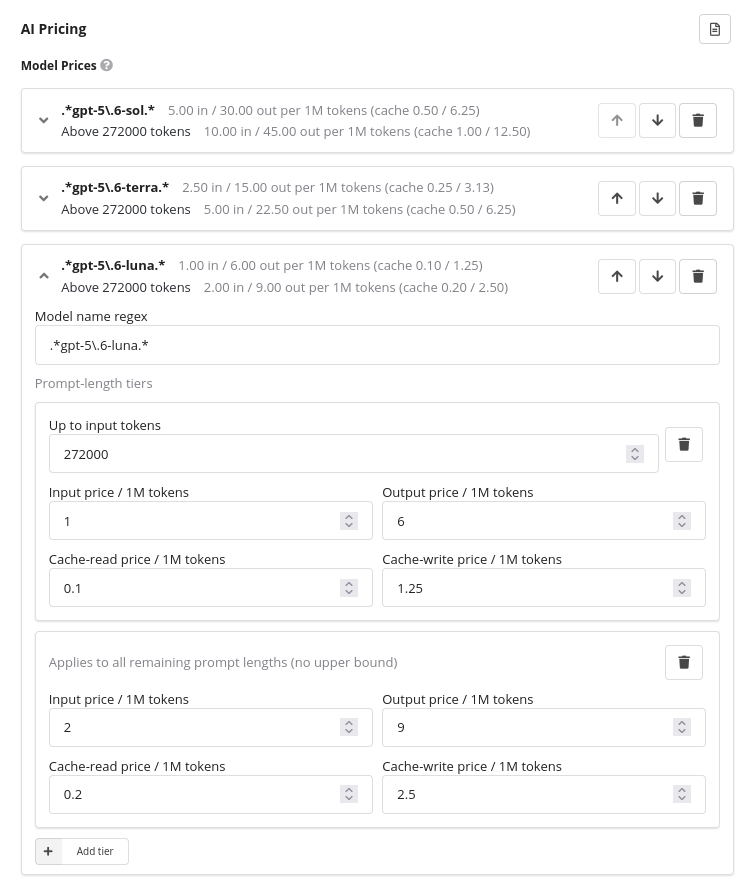
Each pricing rule consists of:
- Model name regex: A regular expression matched against the qualified model name. The first matching rule in the list is used. Interactions with models that match no rule are recorded with a cost of 0.
- Prompt-length tiers: One or more tiers, each selected by the total input-token count of a request. Providers often charge higher rates for long prompts, which the tiers reflect. The whole request is priced at the single tier selected by its input-token count, not as marginal brackets. The last tier must be unbounded so that every request can be priced.
Each tier defines four prices, all per one million tokens: input tokens, output tokens, cache-read tokens, and cache-write tokens. Cache prices might be irrelevant for some providers, as some create prompt caches without extra cost.
The Add standard provider button inserts preconfigured price sets for OpenAI, Google Gemini, and Anthropic. These presets are provided for convenience and bundled at the time of the Teamscale release. Consequently, they may be inaccurate or outdated, so review them against the provider's current price list after inserting them.
Costs Are Estimated at Interaction Time
The cost of each AI interaction is computed with the prices configured at that moment. Changing prices later does not update already recorded costs.
Monitoring AI Usage
Teamscale records every model interaction, so administrators can monitor what the AI features are doing and what they cost. Both views are located in the AI Assistance perspective and require the global View System Status permission.
AI Log
The AI Log view shows one entry per model interaction, including the date, user, task, model, token counts, estimated cost, and duration. Clicking an entry opens a detail dialog that includes the full prompts and model responses, which helps to understand and debug unexpected AI behavior. Interactions triggered within a project appear in that project's AI log, while all others appear in the global AI log.
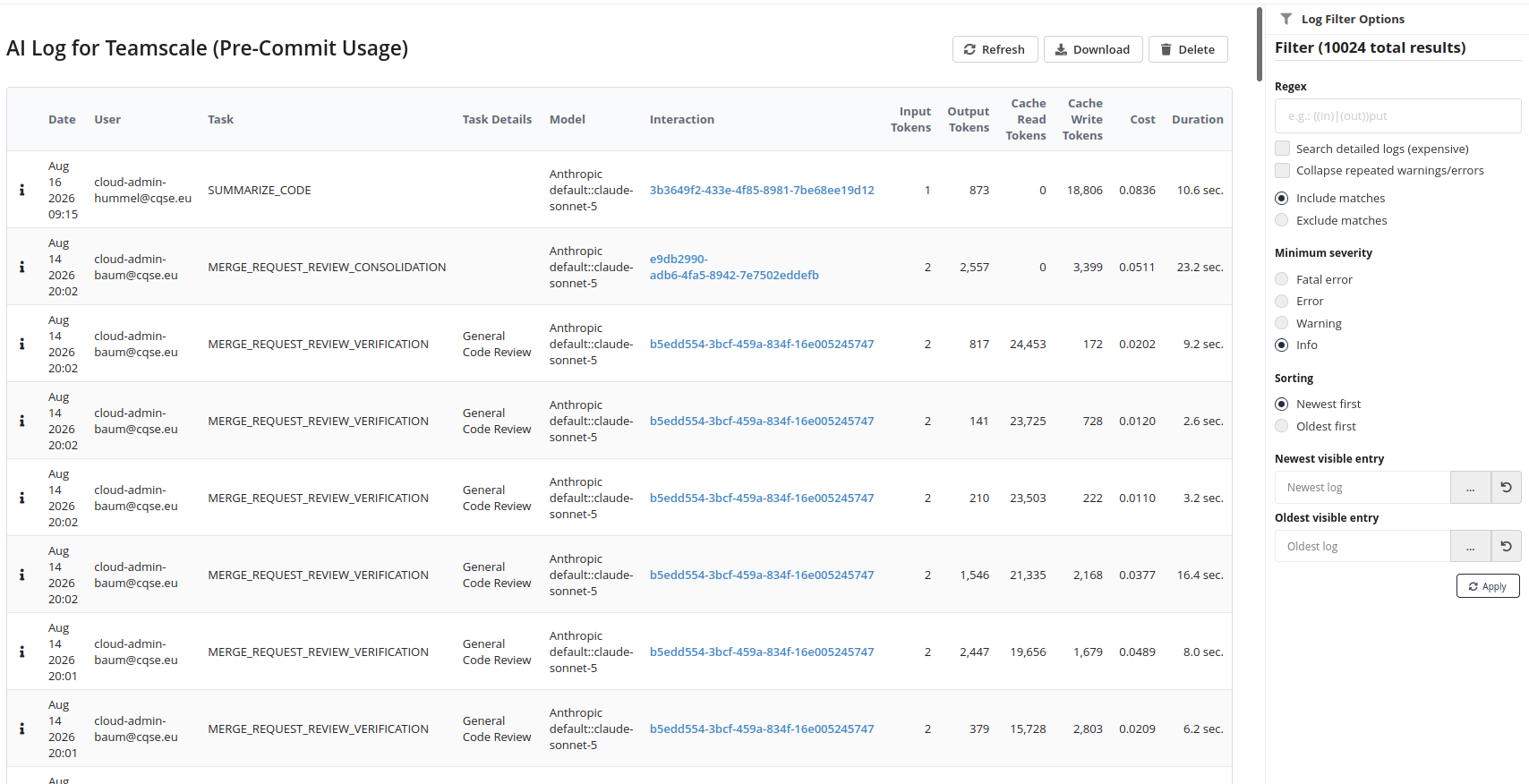
The AI log is a debugging tool, not a permanent record: only the newest 10,000 entries are kept, older entries are deleted automatically, and the log is not part of backups. Deleting log entries manually requires the Access Administrative Services permission.
AI Usage
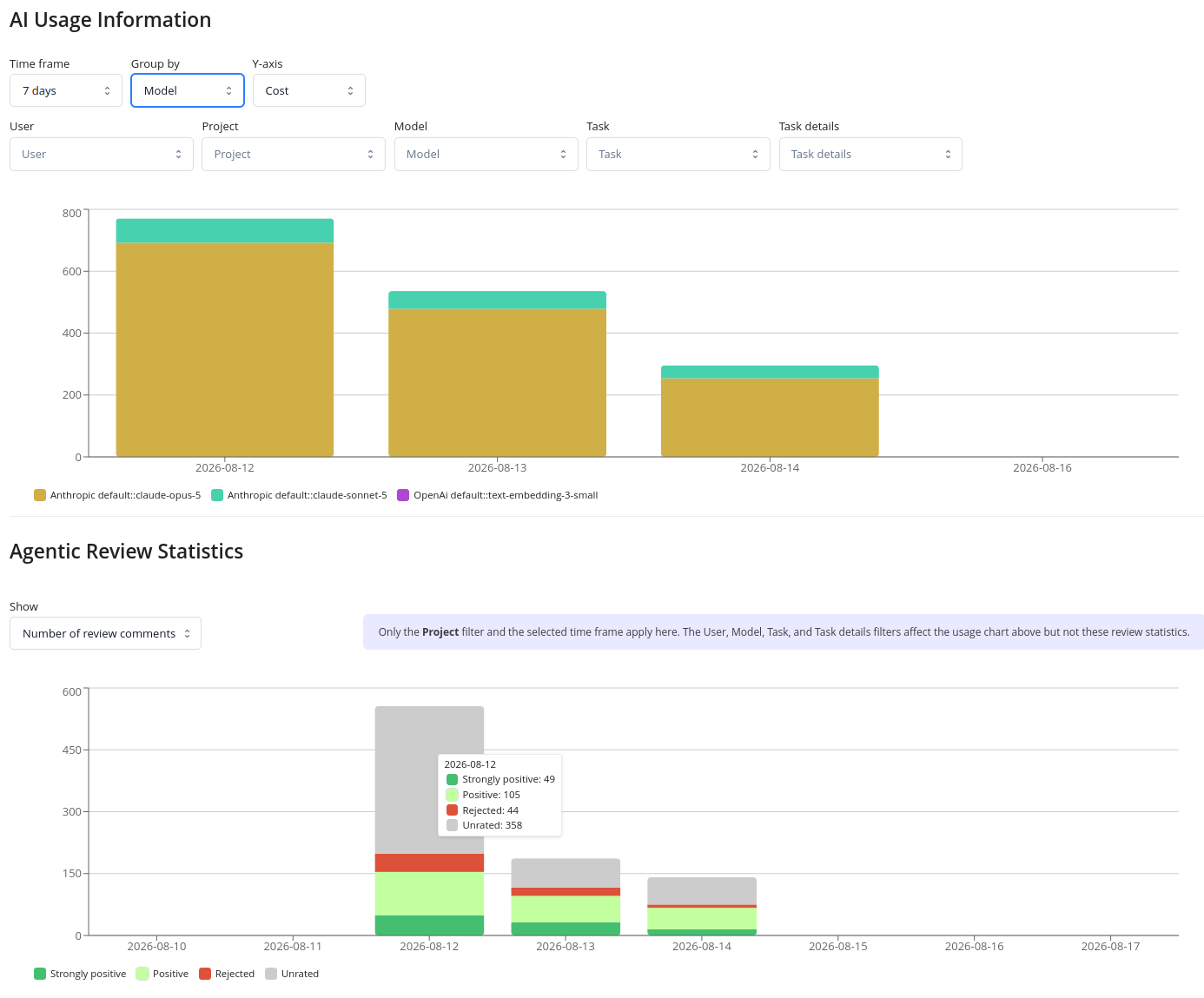
The AI Usage view shows aggregated charts of token usage and estimated costs over time. You can group and filter by user, project, model, task, and task details, for example, to see the cost per review agent. Unlike the AI log, this aggregated usage data is persisted in the backups.
The view also contains the Agentic Review Statistics chart, which aggregates how users rated agentic review comments and thus shows how helpful the generated reviews are over time.