
Recurring Retrospectives
In the Retrospectives View, you can create recurring retrospectives, which automatically generate new retrospectives on a fixed schedule. For example, you can create a new retrospective every 3 months or every year to track quality trends over time.
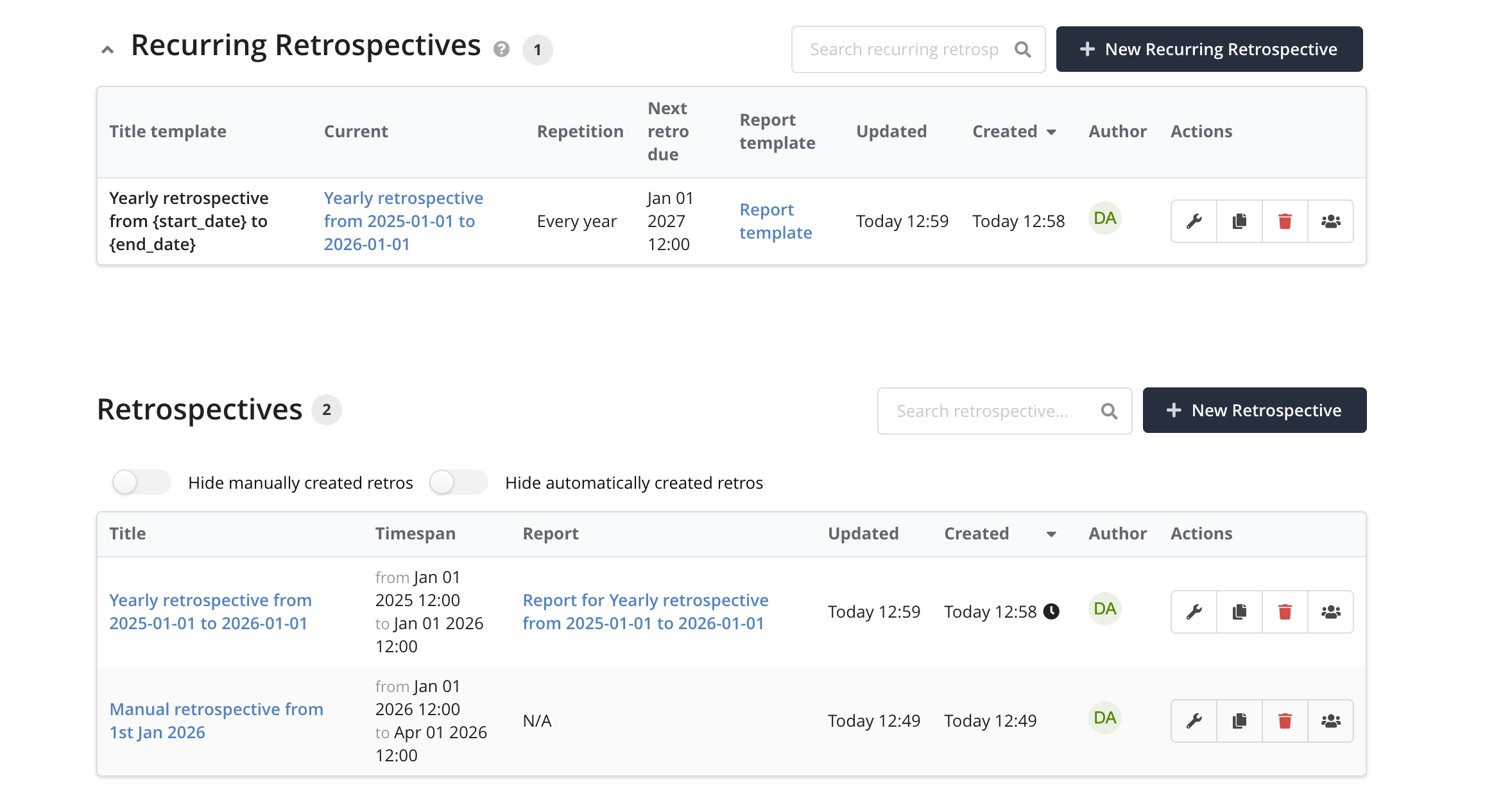
Creating a Recurring Retrospective
To create a recurring retrospective, click New Recurring Retrospective in the Retrospectives view. This opens a dialog with the following settings:
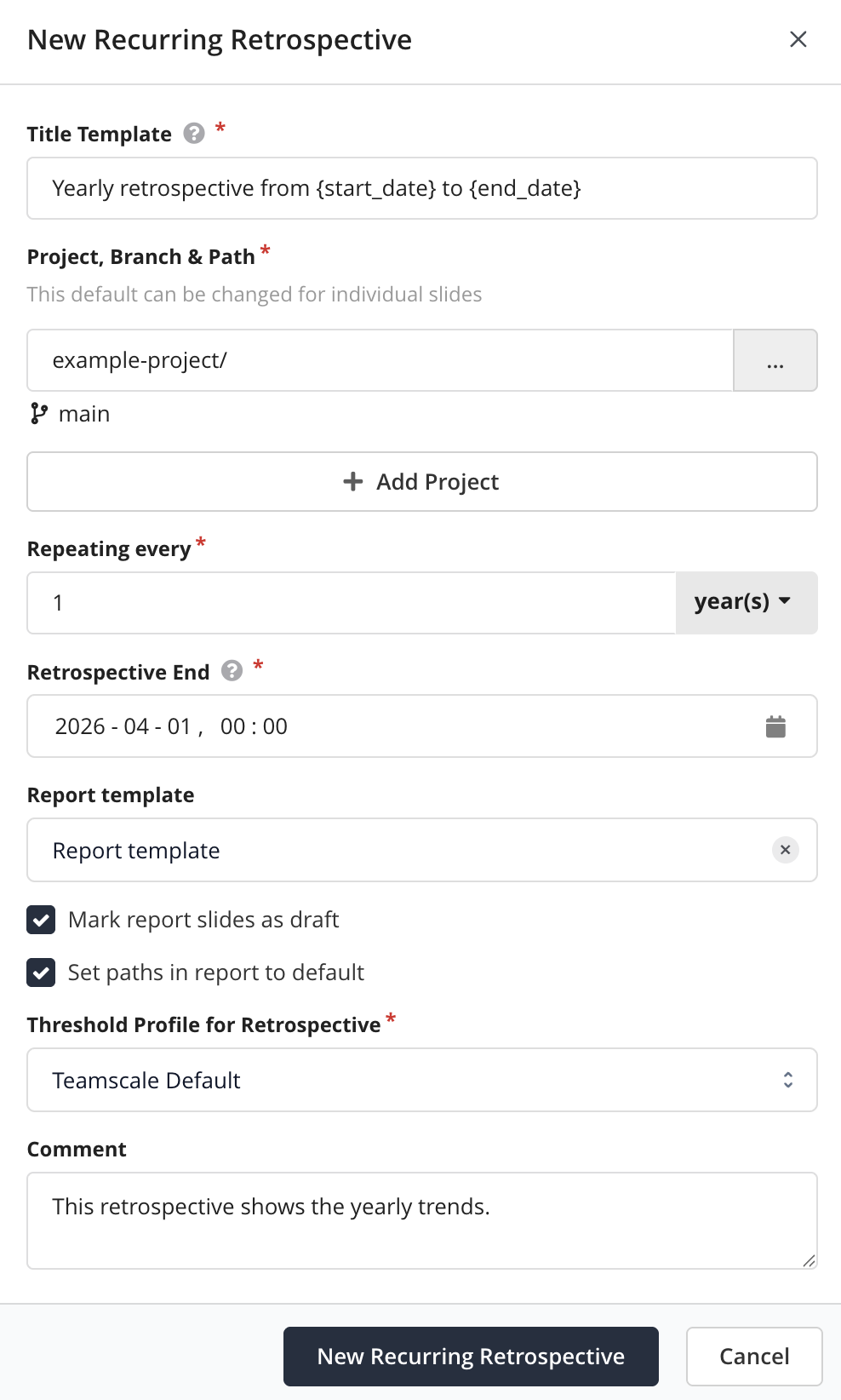
Basic Settings
| Field | Description |
|---|---|
| Title Template | Name template for each generated retrospective. Use {start_date} and {end_date} as placeholders — they are replaced with the start and end date of each period in yyyy-MM-dd format. For example, Retrospective from {start_date} produces Retrospective from 2024-01-01. |
| Project | The default project and branch for retrospectives generated from this schedule. |
| Additional Projects | Optional extra projects to include in each generated retrospective. |
| Comment | An optional administrative note about this recurring retrospective. |
Schedule
The schedule defines how often a new retrospective is generated and when the current period ends.
| Field | Description |
|---|---|
| Schedule | How frequently a new retrospective is generated, e.g. every 1 month or every 3 months. Supported units: days, weeks, months, years. |
| End Hour | The end timestamp (whole hour) of the current retrospective period. Each time a new retrospective is generated, this timestamp advances by one period. |
Handling end-of-the-month dates
When setting a monthly or yearly schedule for the 29th, 30th or 31st of the month, Teamscale will calculate the next due date as follows: If the upcoming month has fewer days than the original date, the due date is adjusted to the last day of that month. Here are a few examples:
- 1 month schedule for 31st January will set the next due date to 28th or 29th of February (depending on leap year)
- 1 month schedule for 29th February will set the next due date to 29th March
Report Template
If you want each generated retrospective to automatically get a linked quality report, select a Report Template. The report is copied from the template for each new retrospective, with permissions carried over from the template.
Two additional options become available when a report template is selected:
| Option | Description |
|---|---|
| Mark new report slides as draft | When enabled (default), newly generated report slides are marked as draft. |
| Set paths in report to default | When enabled, report paths are reset to the retrospective's default project setting on each generation. |
Threshold Profile
Select the metric threshold profile used to assess metrics in each generated retrospective.
Editing a Recurring Retrospective
To edit a recurring retrospective, use the actions menu in the Recurring Retrospectives table. You can change the title template, schedule, project settings, threshold profile, and report template.
Active retrospective settings always reflect the recurring retrospective
The last instance of the recurring retrospective is the so-called active retrospective. You cannot edit or delete an active retrospective independently, its settings match the recurring retrospective.
Permissions
Creating a recurring retrospective requires the global "Create Retrospectives" permission. If a report template is used, "Create Quality Reports" is also required.
The permissions for the generated retrospectives are carried over from the active retrospective instance.
Deleting Recurring Retrospectives and Generated Instances
Deleting a recurring retrospective removes the recurring schedule and its current active instance. Previously generated retrospectives are not deleted, they remain accessible as standalone retrospectives.
Deleting a generated retrospective (a past instance) is allowed and only removes that individual retrospective. The recurring retrospective and any other instances are unaffected.
How Generation Works
Teamscale checks for due recurring retrospectives every hour. When a retrospective is due, it:
- Creates a new retrospective instance using the title template with the computed
{start_date}and{end_date}. - Advances the end timestamp by one period for the next cycle.
- Generates a linked quality report from the template, if configured.
- Pre-renders all report slides (marked as draft if that option is enabled).
If a large number of retrospectives are due at once (for example, because the end timestamp was set far in the past), at most 10 are generated.