
Jenkins Plugin: Teamscale Upload
For the CI/CD-pipeline in your Jenkins server you can make use of the teamscale-upload plugin. The purpose of this plugin is to upload external reports like code coverage from your builds to your Teamscale server. The showcases in this documentation cover a freestyle project, declarative pipeline and scripted pipeline of Jenkins.
To not break your build, by default the plugin does not change the build status even if the reports could not be uploaded to Teamscale. Instead, the errors are only printed to the build log. You can make these problems more visible, by setting Result when no reports and/or Result on report upload failure to FAILURE or UNSTABLE instead of the default of IGNORE.
Global configuration
Go to "Manage Jenkins" and then "System" to configure the global settings for the plugin. 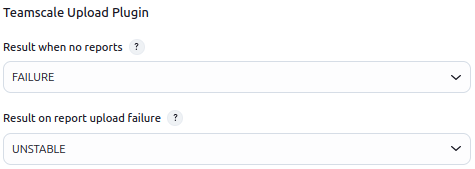
- Result when no reports: Which build status to set when there are no reports to upload. Can be overridden per action.
- Result on report upload failure: Which build status to set when report uploading fails. Can be overridden per action.
Freestyle Project
- Install the plugin from the official marketplace on your Jenkins server
- Create a freestyle project in Jenkins by clicking on New Item and choosing Freestyle project.
- Add the Teamscale Upload plugin as post-build action
- Configure the plugin
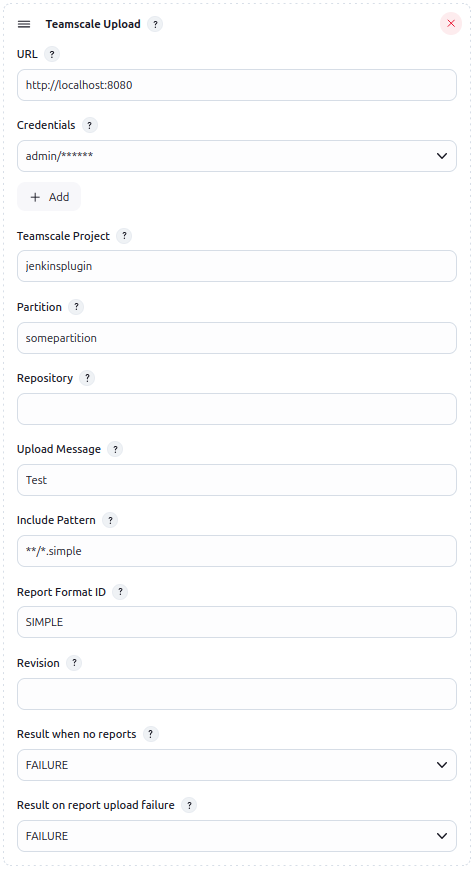
- URL: The URL to your Teamscale server
- Credentials: Select Jenkins global credentials consisting of Teamscale Username and Access Key (from http://<your-teamscale-url>/admin/users?action=edit&username=<your-build-user>). In the Jenkins Credentials Provider, use Username with password for storing this information.
- Project: The project in Teamscale to upload the data to.
- Partition: The partition in Teamscale.
- Upload Message: Desired message for the data which will be uploaded.
- Include Pattern: Include pattern for file selection in the Jenkins working directory (e.g. here: selecting all *.simple files in working directory)
- Report Format ID: Use the PARAMETER VALUE in supported formats.
- Revision: Please leave this one empty! Only needed for the pipeline build steps.
- Result when no reports: Which build status to set when there are no reports to upload. Can be set to inherit from the global configuration or override it.
- Result on report upload failure: Which build status to set when report uploading fails. Can be set to inherit from the global configuration or override it.
Multiple File Formats and/or Report Format Ids
The plugin is only supporting one file format and one report format. If you do look for multiple steps please have a look at the pipelines.
Pipeline configuration
Use the /pipeline-syntax endpoint (e.g. http://localhost:8080/jenkins/pipeline-syntax/) of your Jenkins instance to more easily generate a valid configuration for the plugin.
Declarative Pipeline
Further reading at the official Jenkins declarative pipeline documentation.
pipeline {
    agent any

    stages {
         stage('Stage 1') {
            steps {
                // Checkout is mandatory to set ENV variable GIT_COMMIT in the pipeline
                git 'https://github.com/Test/test.git'
                // For SVN, change GIT_COMMIT to SVN_REVISION
                teamscale includePattern: '**/*.simple', credentialsId: 'teamscale_id', partition: 'yourPartition', reportFormatId: 'SIMPLE', teamscaleProject: 'simpleProject', uploadMessage: 'yourMessage', url: 'http://localhost:8100', revision: "${GIT_COMMIT}", resultNoReports: 'FAILURE', resultOnUploadFailure: 'UNSTABLE'
            }
        }

         stage('Stage 2') {
            steps {
               teamscale includePattern: '**/*.simple', credentialsId: 'teamscale_id', partition: 'yourPartition', reportFormatId: 'SIMPLE', teamscaleProject: 'simpleProject', uploadMessage: 'yourMessage', url: 'http://localhost:8100', revision: "${GIT_COMMIT}"
               teamscale includePattern: '**/*.xml', credentialsId: 'teamscale_id', partition: 'yourPartition', reportFormatId: 'JACOCO', teamscaleProject: 'jacocoProject', uploadMessage: 'yourMessage', url: 'http://localhost:8100', revision: "${GIT_COMMIT}"
            }
        }
    }
    post {
            always {
                teamscale includePattern: '**/*.simple', credentialsId: 'teamscale_id', partition: 'yourPartition', reportFormatId: 'SIMPLE', teamscaleProject: 'simpleProject', uploadMessage: 'yourMessage', url: 'http://localhost:8100', revision: "${GIT_COMMIT}"
                teamscale includePattern: '**/*.xml', credentialsId: 'teamscale_id', partition: 'yourPartition', reportFormatId: 'JACOCO', teamscaleProject: 'jacocoProject', uploadMessage: 'yourMessage', url: 'http://localhost:8100', revision: "${GIT_COMMIT}"
            }
    }
}
Scripted Pipeline
Further reading at the official Jenkins scripted pipeline documentation.
node {
    def GIT_COMMIT

         stage('Stage 1') {
                def rev = git 'https://github.com/Test/test.git'
                GIT_COMMIT = rev.GIT_COMMIT
        }

         stage('Stage 2') {
                teamscale includePattern: '**/*.simple', credentialsId: 'teamscale_id', partition: 'yourPartition', reportFormatId: 'SIMPLE', teamscaleProject: 'simpleProject', uploadMessage: 'yourMessage', url: 'http://localhost:8100', revision: "${GIT_COMMIT}", resultNoReports: 'FAILURE', resultOnUploadFailure: 'UNSTABLE'
                        teamscale includePattern: '**/*.xml', credentialsId: 'teamscale_id', partition: 'yourPartition', reportFormatId: 'JACOCO', teamscaleProject: 'jacocoProject', uploadMessage: 'yourMessage', url: 'http://localhost:8100', revision: "${GIT_COMMIT}"
         }
}